
In this guide, we will talk about one of the biggest issues in Windows 10 & 11: how to fix the microphone settings.
In general, Windows 10 & 11 don’t easily work with many recording devices, even if they’re part of the computer. What we’ve found through our experience is that if a mic connected to a computer isn’t working it’s usually a settings problem and not a problem with the microphone itself.
If you don’t have any problems just yet – you just have a new microphone and you are unsure how to install it – check out our microphone installation guide.
How To Fix Microphone Settings In Windows 10 & 11
Fix Microphone Settings In Windows 11 October 2021
One of the major issues when trying to fix microphone settings in Windows 11 is the slightly redesigned UI. Because of this, you’ll have to get familiar with the new Settings app and its interface. Otherwise, the process does exactly the same thing that it does on Windows 10.
First, get to the settings app and select “Privacy & Security” from the left-hand menu listing.

Afterward, focus on the right side of the Settings app and scroll down “App permissions” and “Microphone” after that.

Finally, you’re exactly on the page where you need to be. From here on out, the solution is almost seamless to understand even for beginners. Simply toggle the “Let apps access your microphone” switch if it is not turned on already. From there, turn on access for every app that you plan on using your microphone for communication and other activities.
Check If the Microphone Is Disabled
There are some instances when Windows 11 might not detect your drivers properly, seeing that it is a (very) new OS on the market. Because of this, you’ll need to check the device manager and/or, eventually, update the drivers yourself.
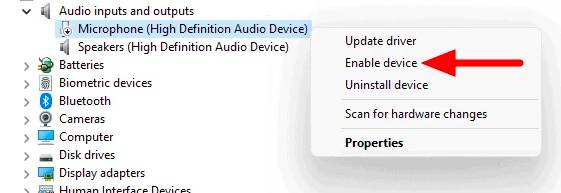
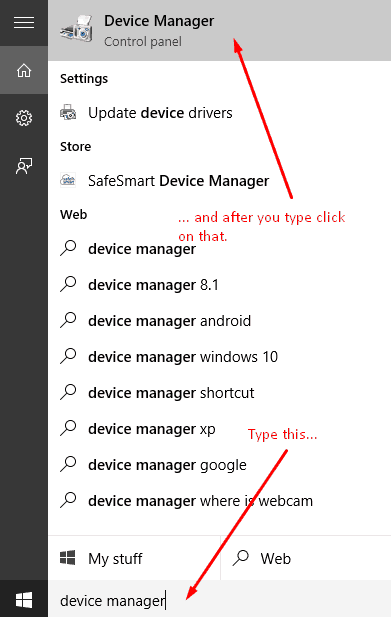
However, you should first check to see if this fact has “disabled” your device in the Device Manager. To access the Device Manager in Windows 10 or 11, simply type “device manager” in the search bar. Next, click on the app itself, as shown here:

Once you click on the appropriate icon, go to the “Audio inputs and outputs” dropdown, click on the arrow shape near the title, and then select your microphone device from the dropdown list. Right-click the appropriate device and select “Enable device.” That should now allow you to use your microphone properly.
Fastest Solution to Fix Microphone Settings In Windows 10 After April 2018 Update
If you’re still using Windows 10, and if the problem started after April 2018 (a major Windows 10 update), then the fastest solution might be this:
Many computers had a kind of privacy settings reset after Microsoft’s April major update. This reset made your apps and programs not able to access your webcam and microphone. Therefore, we should give them their access and permissions back. Follow me:
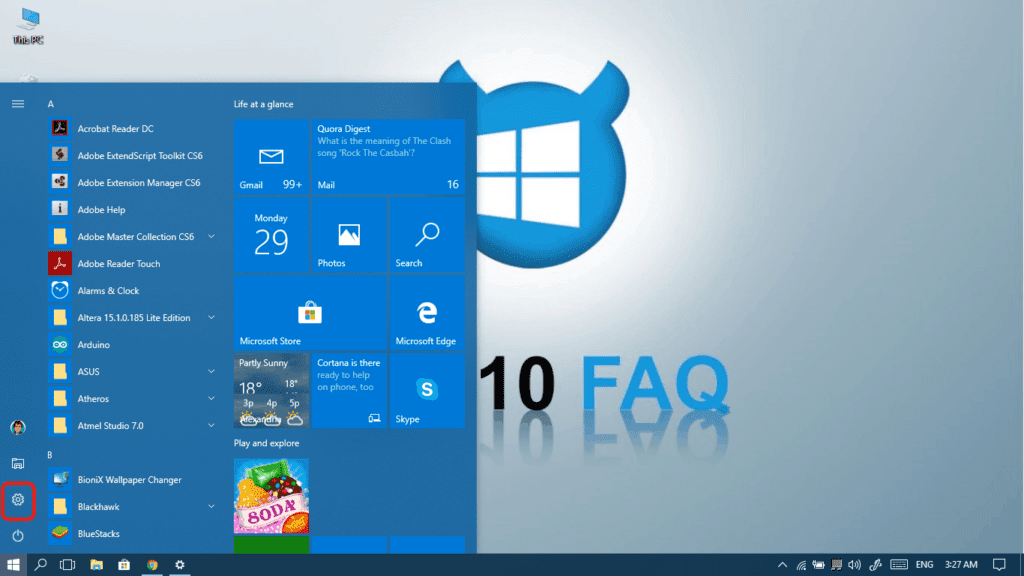
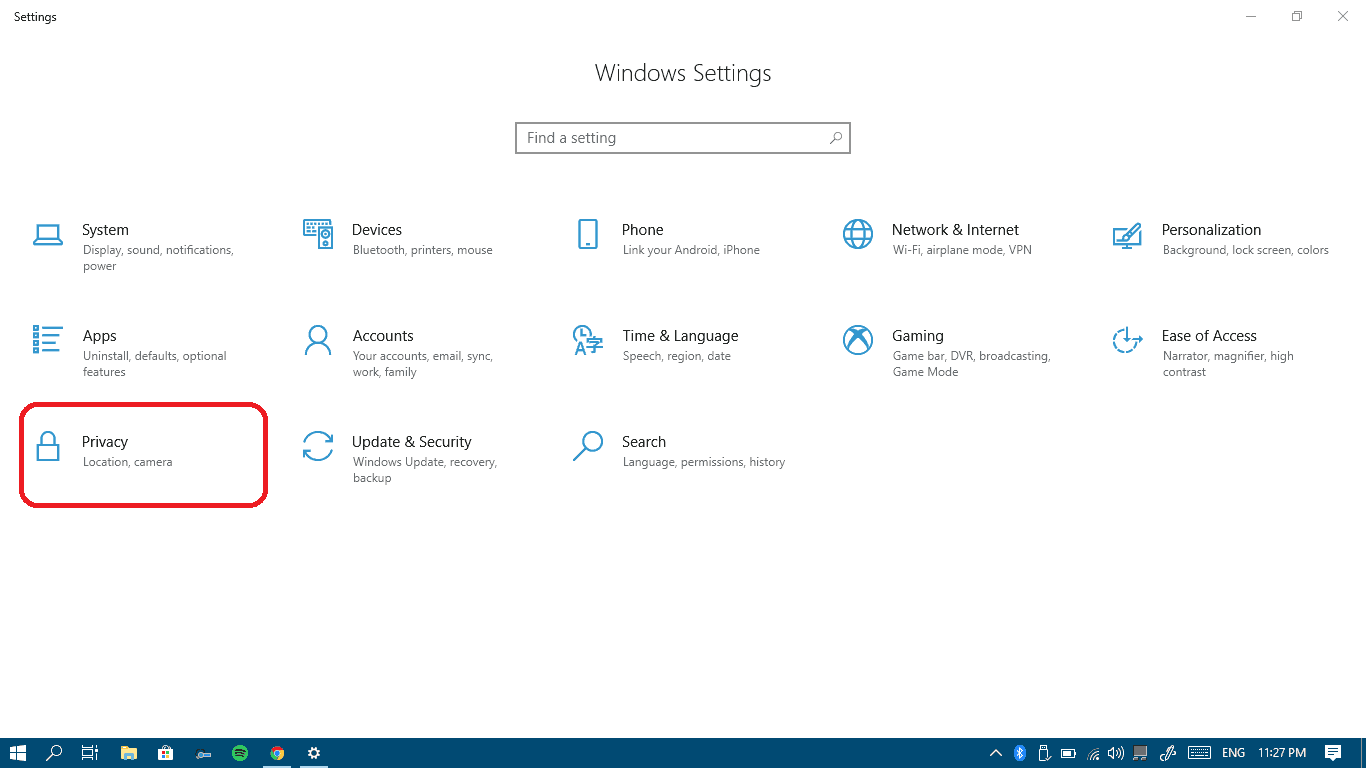
- Open Settings from your start menu.
 Click on Privacy in order to access all your privacy settings.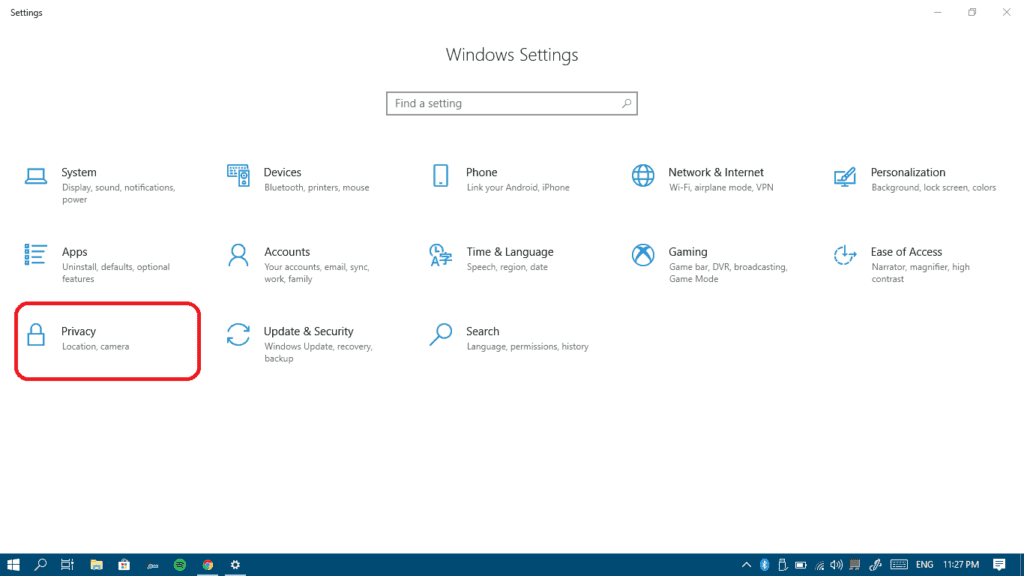
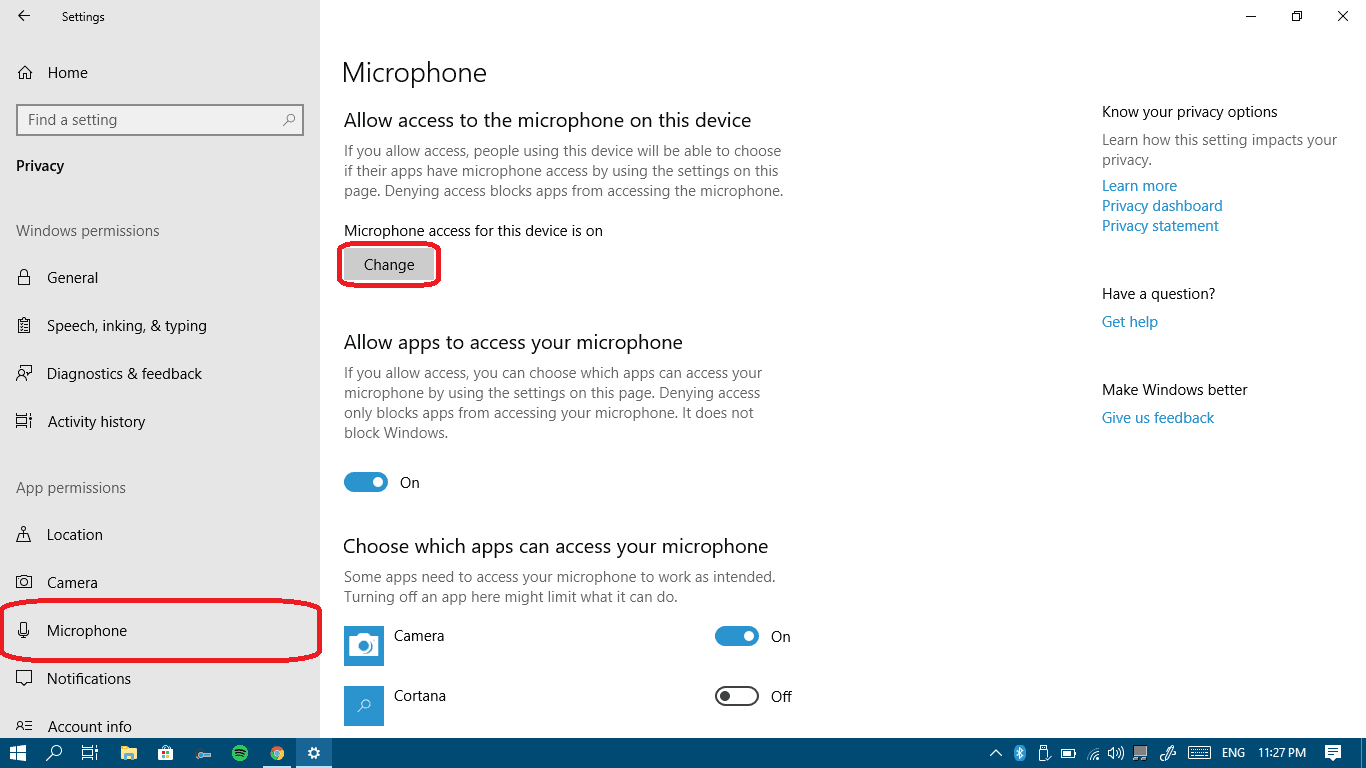
- Select Microphone from the left pane and then click the Change button.
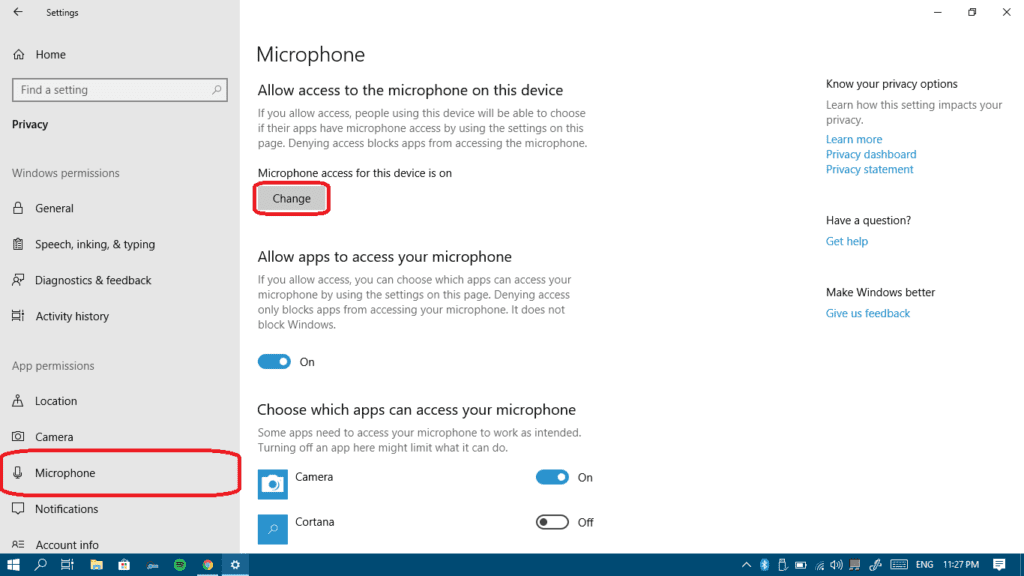
- Now, turn on microphone for this device.
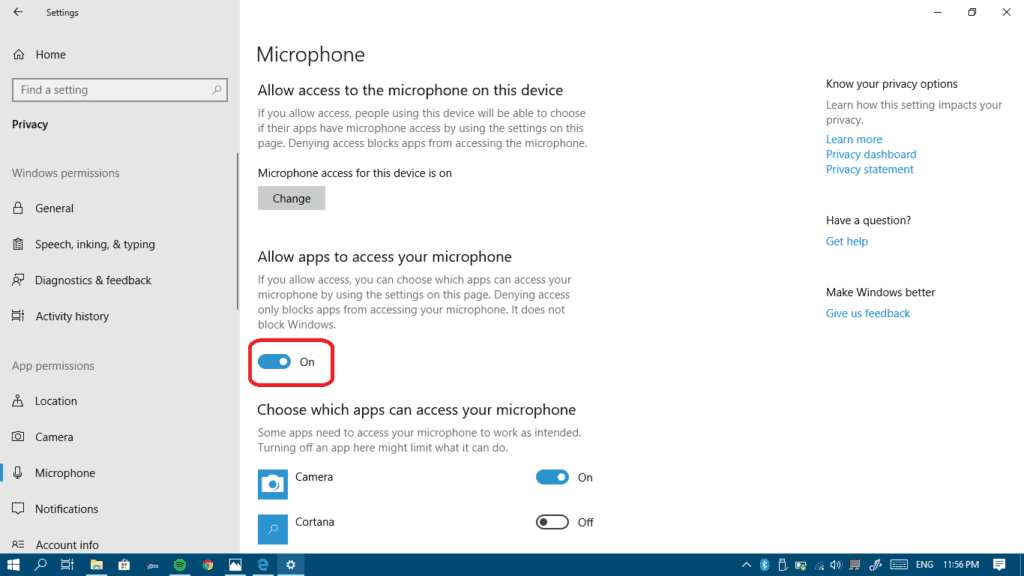
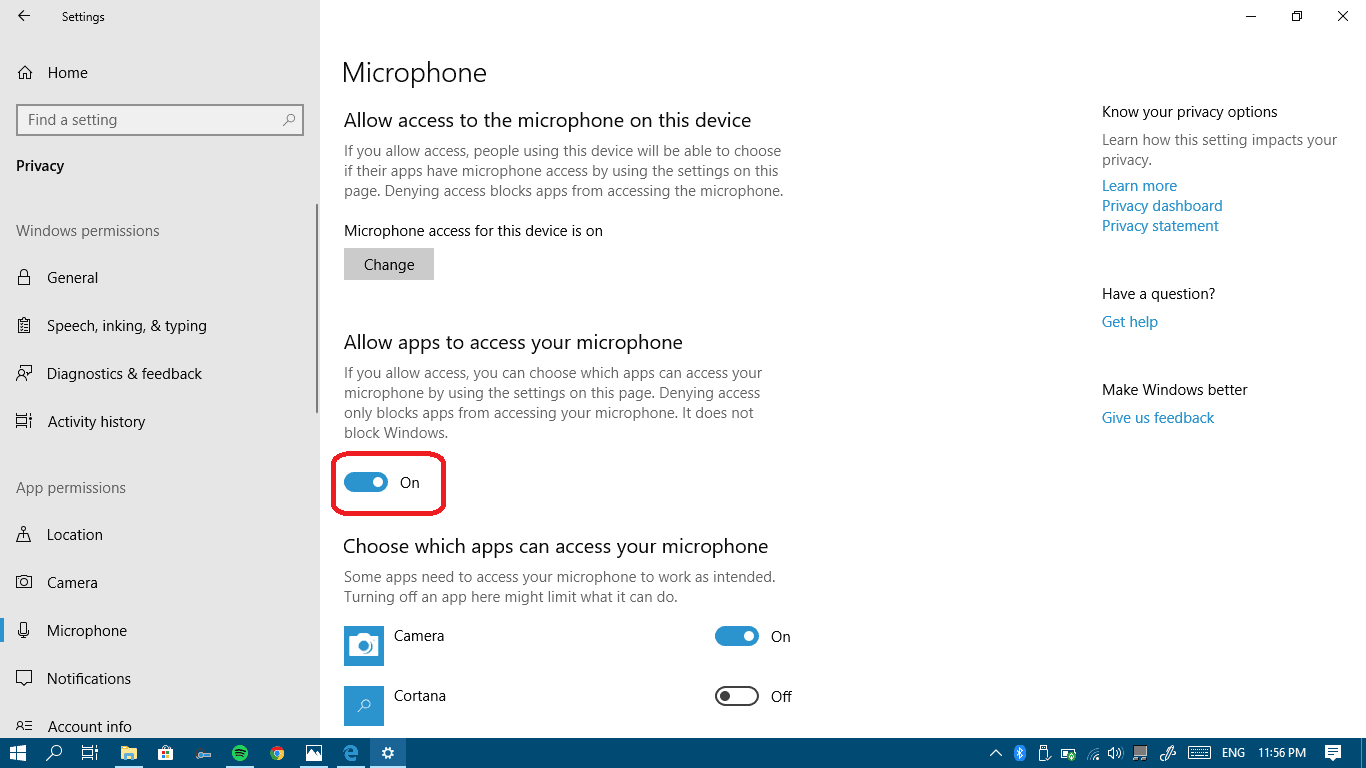
- Turn on Allow apps to access your microphone.
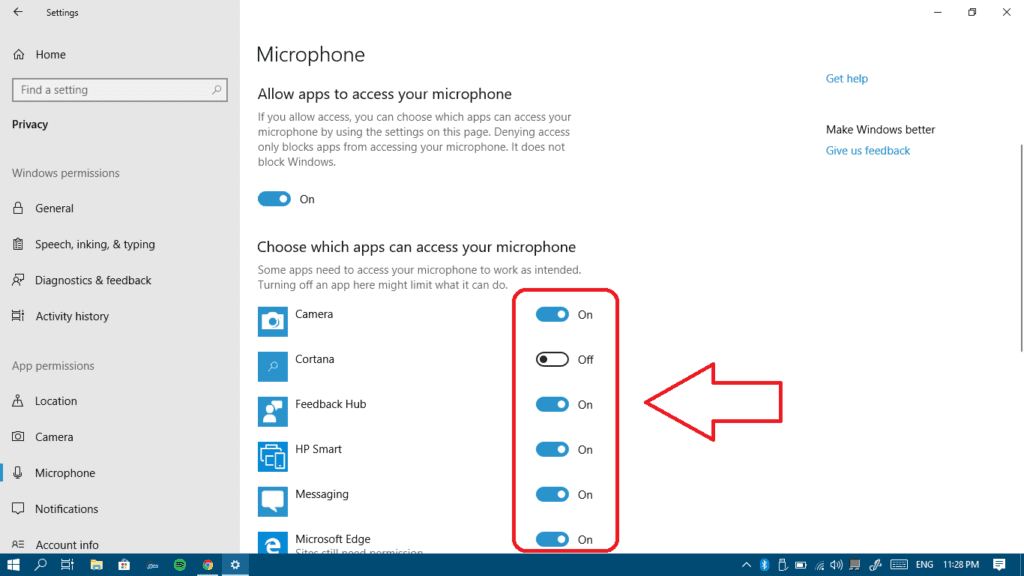
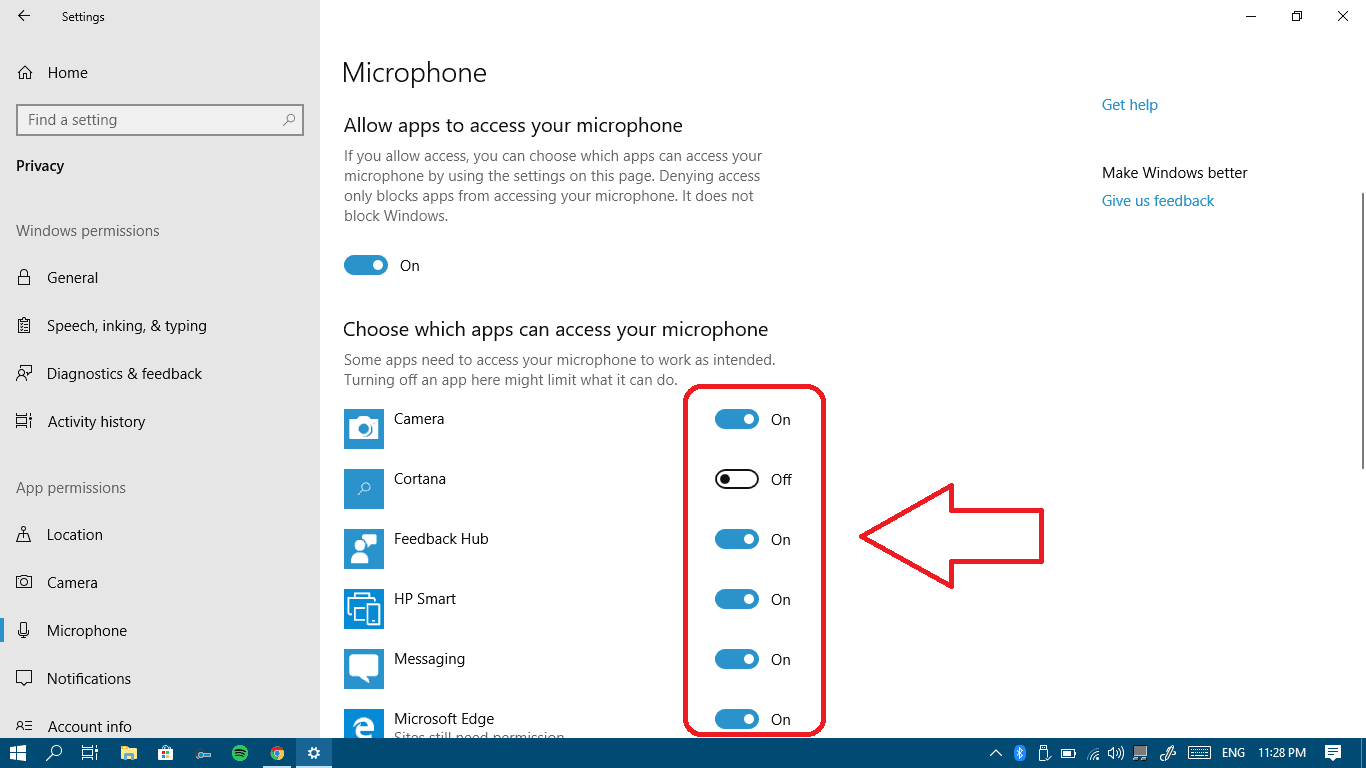
- Finally in the app list, make sure to turn on microphone access for every app you want to give permission to access your microphone.
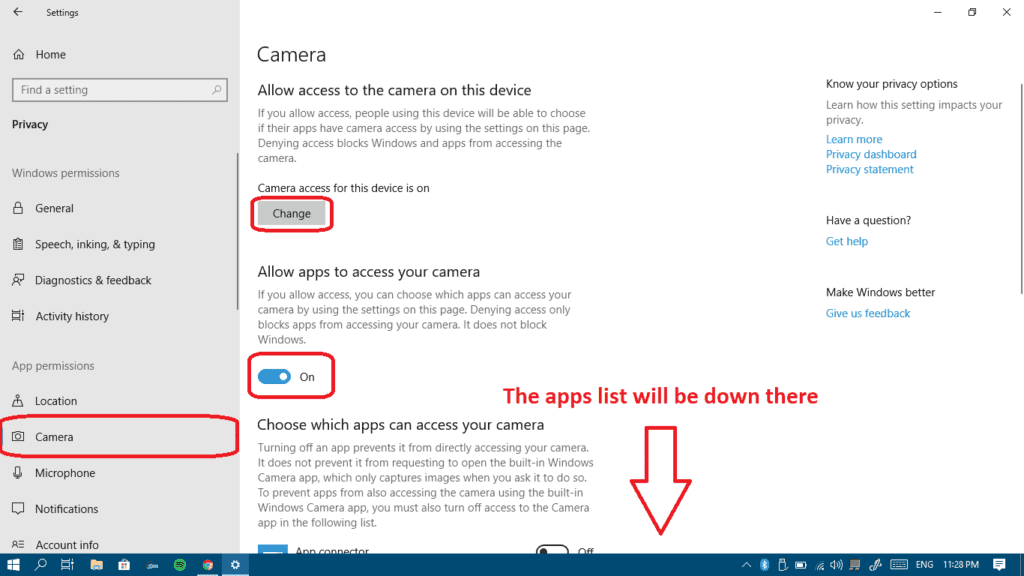
- Repeat the same exact steps but for your webcam this time.

Your mic still isn’t working?
Make sure it’s not a hardware issue
Let’s check that your mic isn’t damaged or faulty first and get that out of the way. The best way to check that is to connect your microphone to another computer running any operating system other than Windows 10.
If the microphone doesn’t work on the other computer too, that means it could be faulty. If it does work on the other computer that means you probably have a software problem on your Windows 10 computer.
On both PCs, if you’re using a desktop computer (not a laptop), make sure you’re connecting your microphone or headset to the back panel of the PC. The front audio ports aren’t always well connected to the motherboard.
Now that we know that it is a software problem, let’s get it fixed.
When you know your recording device is called “VIA HD audio” please click here
For a recording device that is called “IDT High Definition Audio Codec” please click here
If the problem concerns your gaming headset, or other microphone + headphones combo, check this out
For any video/audio recording software installation on your computer – check this
If none of these links above are relevant to you, keep reading.
Method I: Let’s fix some recording device settings
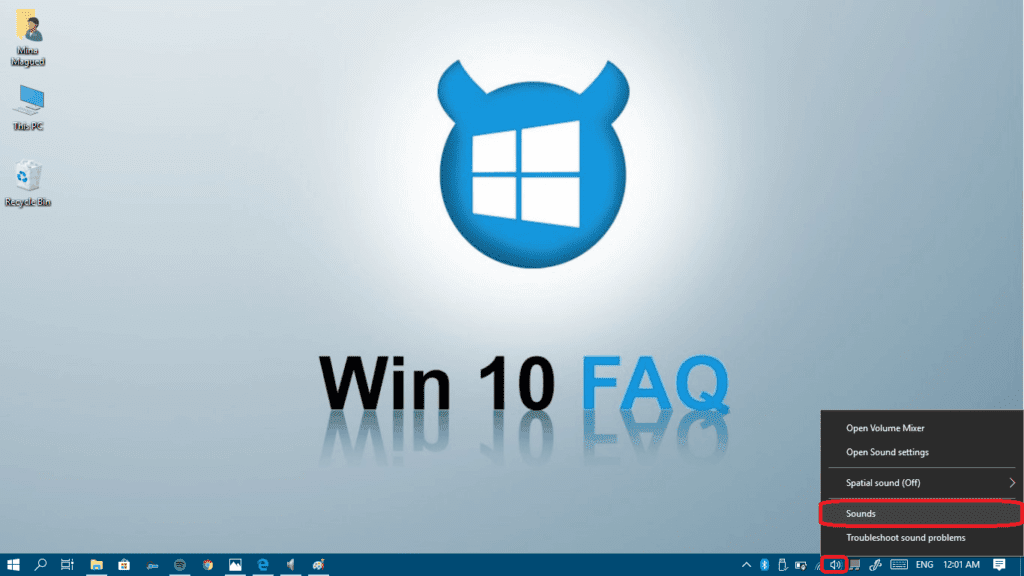
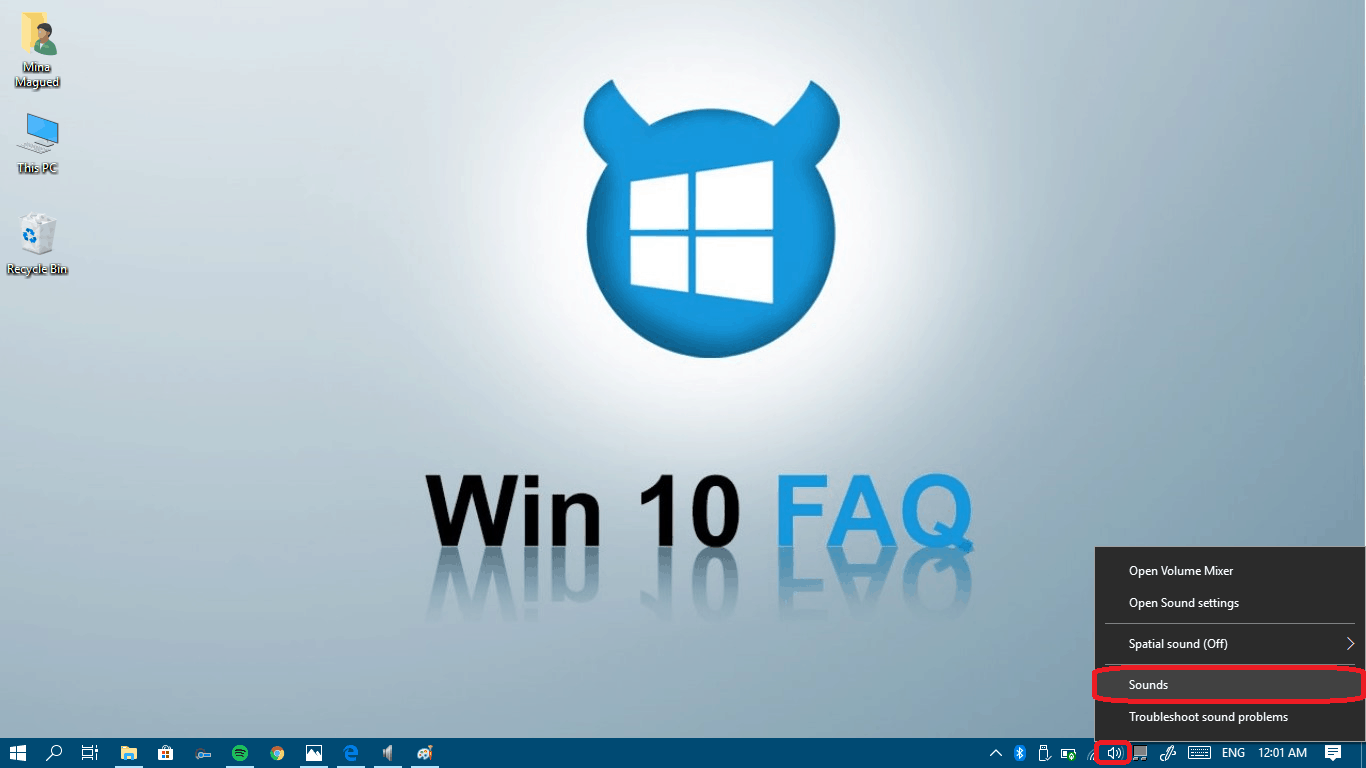
- Right-click on the speaker icon in the bottom-right part of the screen and choose Sounds.
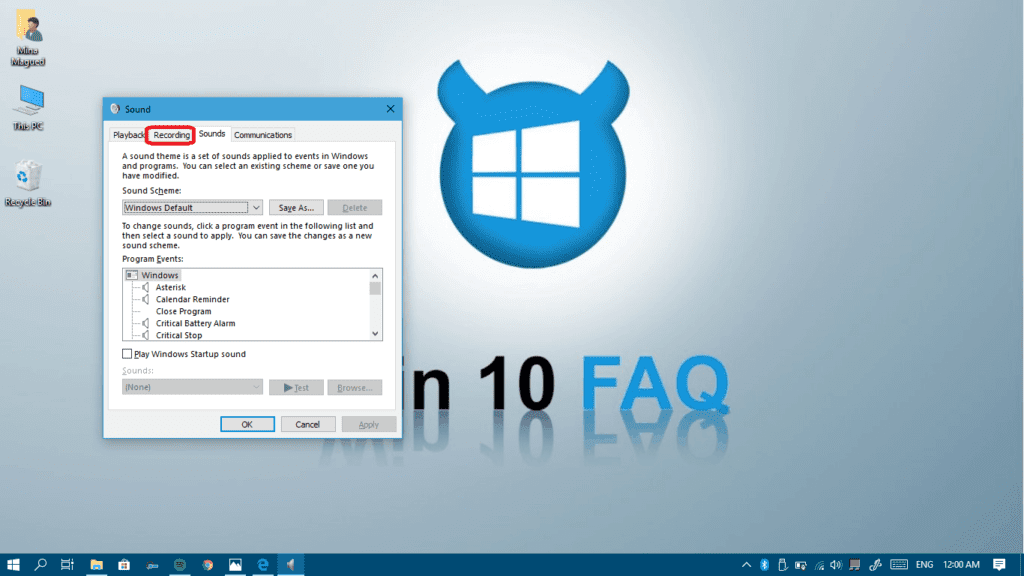
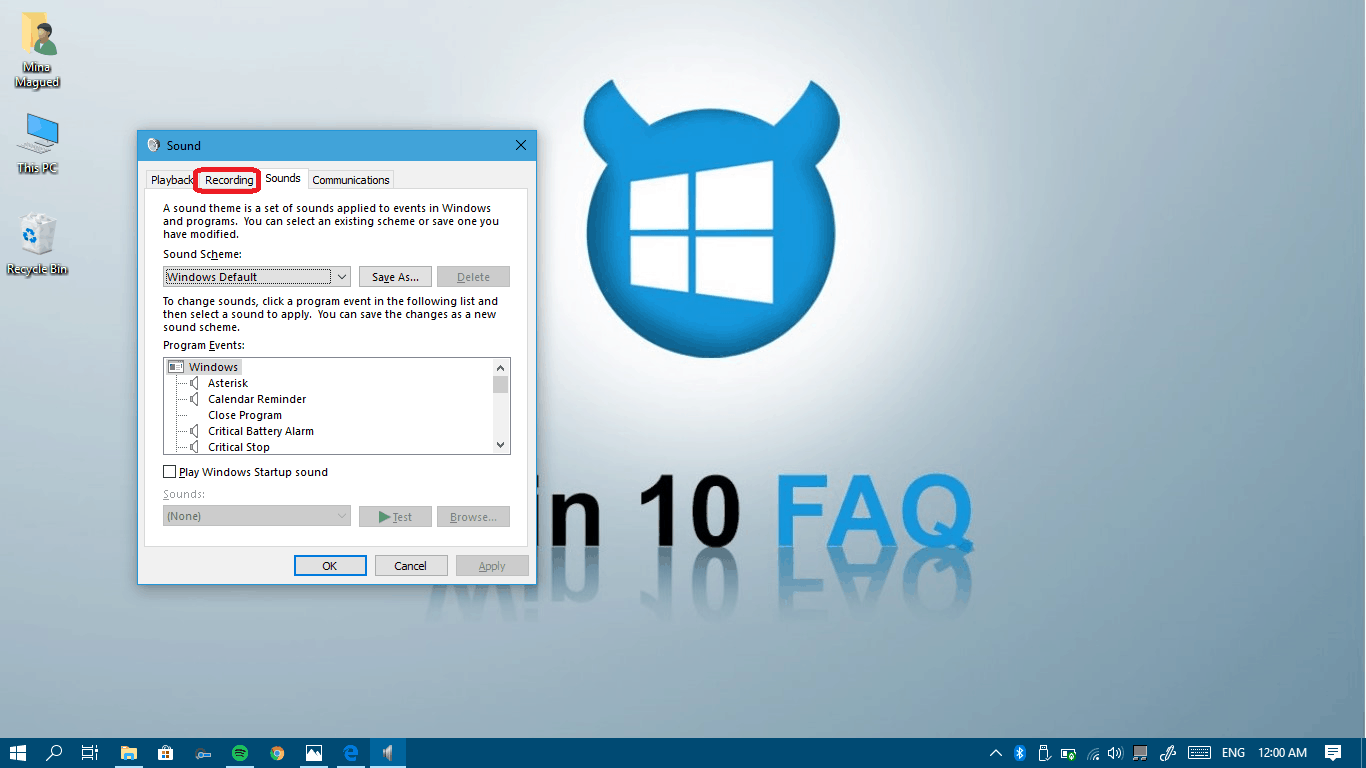
- Click on the Recording tab in order to see your recording devices list.
- A list of recording devices will appear. Try speaking into your microphone, and see if there any green bars rising next to one of them while you talk (as in screenshot).
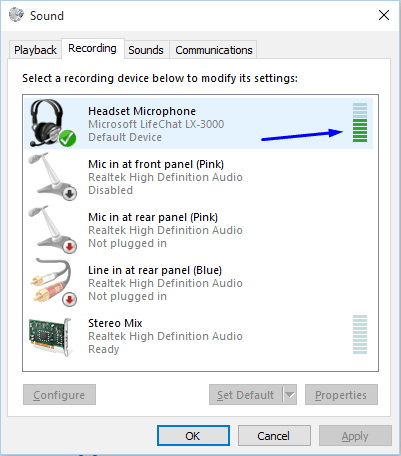
- If you don’t see any green bars skip to step 5. If you do see green bars when you talk into the microphone, but it still doesn’t work in some program, then that means that the mic is correctly configured in Windows, but the program is listening to the wrong recording device. Try changing that program’s settings.
- Check if you can recognize which one of the devices in the list is your microphone. If you found it, click on it to highlight it, and then click Set Default.
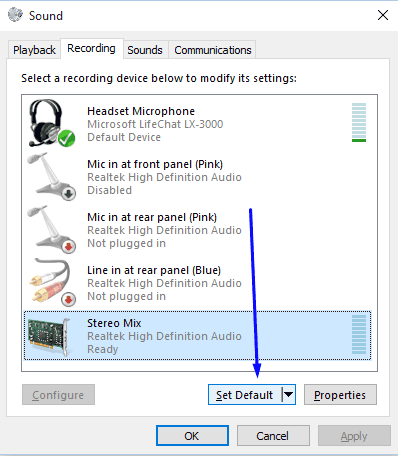
- Check again if you see green bars rising when you talk into the microphone. If you do your mic is now correctly setup. If not, continue to next step.
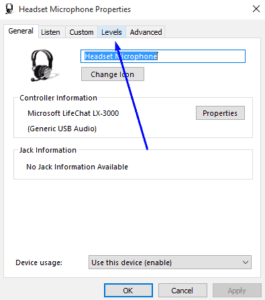
- Double-click on the device that represents your microphone. The Microphone Properties window will appear. Click the Levels tab.
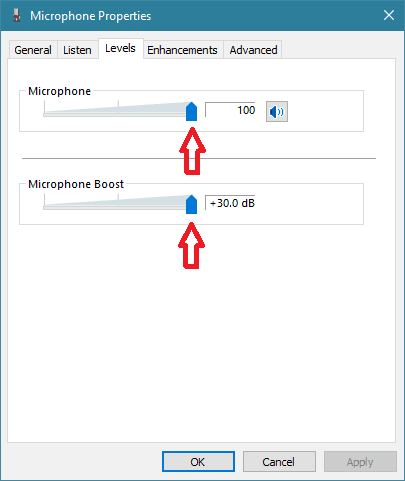
- In the “Levels” tab make sure that “Microphone” and “Microphone Boost” are set to the maximum, you can do that by sliding them to the right until the first one shows 100 and the boost is set to +30.0 dB. Then click OK.
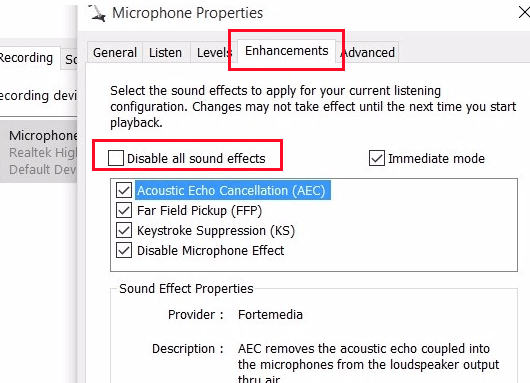
- In the “Enhancements” tab (if found), make sure to uncheck the “Disable all sound effects” checkbox.
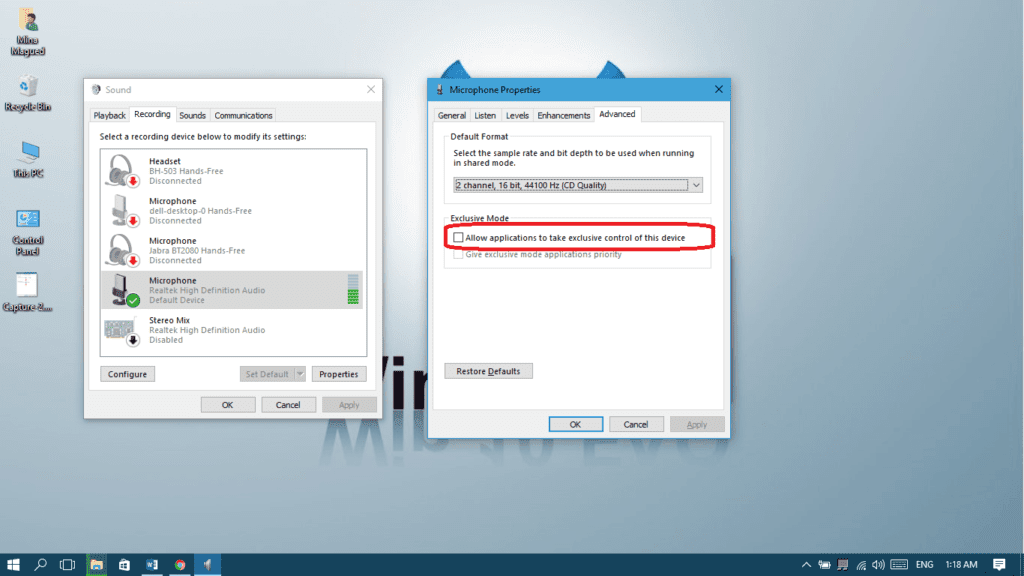
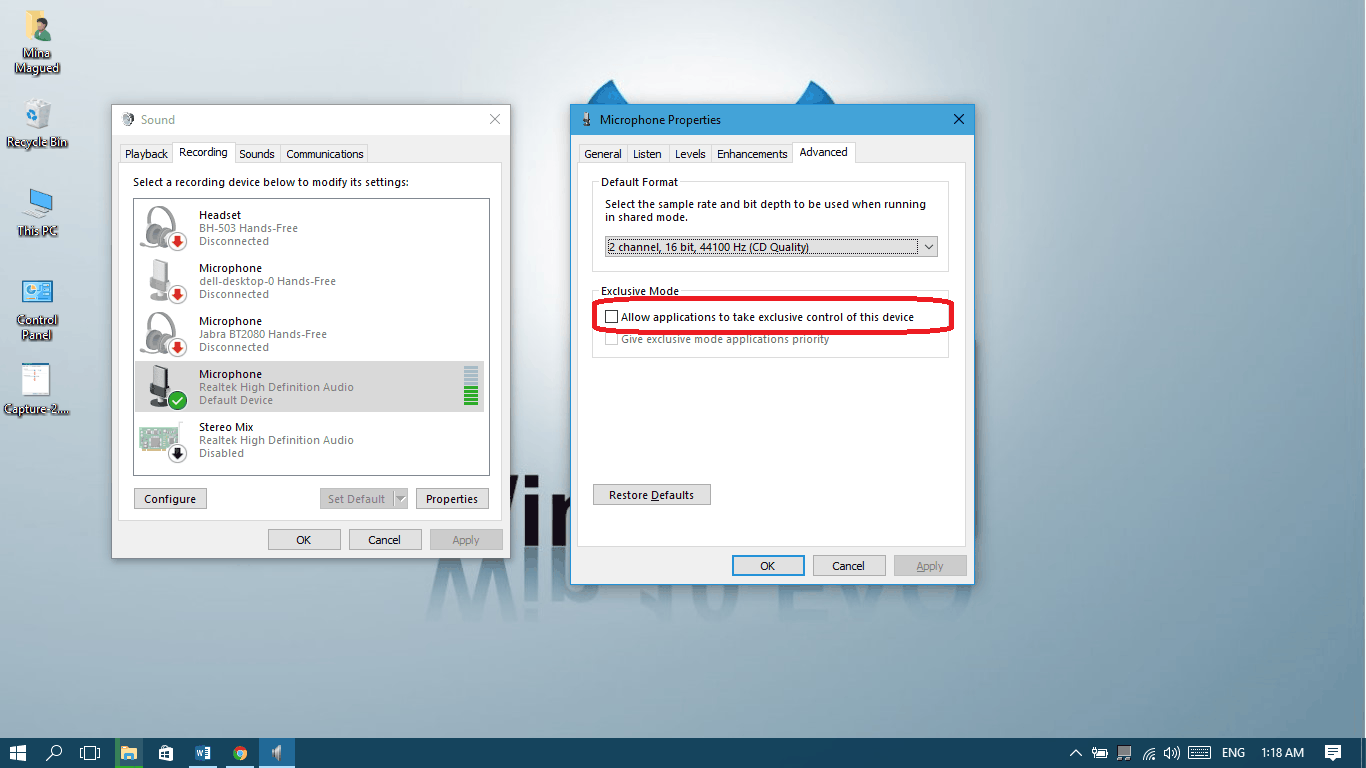
- Now visit the “Advanced” tab too and make sure to uncheck the “Allow applications to take exclusive control of this device” checkbox and click “OK“. (Also uncheck the “Enable audio enhancements” check box if found).
- In the main recording devices panel, go to the “Communications” tab and select the “Do nothing” radio button and then click OK.

- Restart your computer and recheck your recording devices panel. If you see green bars rising when you talk into the microphone – your mic is now properly configured!
- If you still don’t see any bars and you’re not 100% sure which one of the devices is the relevant one, try following steps 4-11 for every device on the list.
Method II: Uninstall and reinstall your microphone drivers
- Open device manager, fastest way is through the search bar:
- Open ‘Audio Inputs and Outputs’
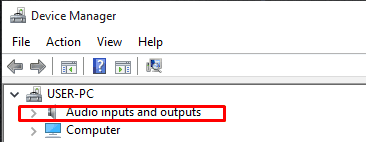
- Left-click on your recording device.
- In the menu that opens up Click ‘Uninstall’.
- Physically disconnect your microphone from the computer.
- Restart the computer.
- Reconnect microphone and let Windows re-install the drivers.
- If your Windows 10 updating gets stuck, this may prevent you from getting the latest drivers automatically. Check this guide to fix it.
- If it didn’t work, I would suggest that you install the latest driver found on your computer manufacturer’s website manually, because sometimes the latest driver isn’t the one compatible with your computer. So you should search for your computer model number on the manufacturer’s website, download the latest driver that is compatible with your model number and Windows 10 and check if it works.
- If you found your computer model on the website but can’t see a version for Windows 10 there, this means there aren’t compatible drivers for it yet and you may have to wait until they release some new drivers.
- Next up are solutions only to specific devices, so if you read up to here and nothing worked, please head to our forum and we’ll try to help.
Method III: Specific solution for users with IDT High Definition Audio Codec device
- Open device manager, fastest way is through the search bar:
- Open ‘Audio Inputs and Outputs’
- Double click on your recording device ‘High Definition Audio Codec’.
- Move to the ‘Driver’ tab.

- Click ‘Update Driver’.
- Then ‘Browse my computer for driver software’.
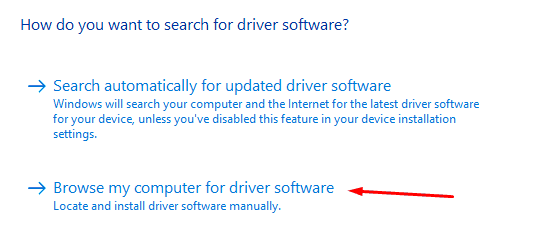
- Click ‘Let me pickup a list of device drivers on my computer’.
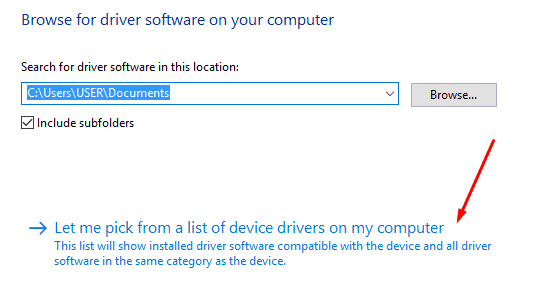
- Select ‘High Definition Audio Device’, and not ‘IDT High Def’, and click Next.
- You will get a warning. Click “Yes”.
- Check if it works.
Method IV: Specific solution for users with VIA HD Audio device
Many VIA users are experiencing problems with recording and/or playback since they moved to Windows 10. If you’re one of these people try to download and install Daniel_K’s modified drivers.
Method V: If the problem concerns your gaming headset or microphone + headphone combo:
First of all, make sure the connection type between your headset and your computer is the same. If your headset has 2 independent jacks, one for the audio and the other for the microphone, your computer must have independent ports as well. If it’s a 2 in 1 (one jack for both microphone and audio) then you computer must have one single port with a headset icon on it.
- iPhone earphones and other headsets’ microphones with one single jack won’t work in case your computer has two ports, splitted. So you’ll need to buy one of these splitters:

- If your headset has two independent jacks and you want to connect both of them to the one headset port in your computer you will need one of these splitters:
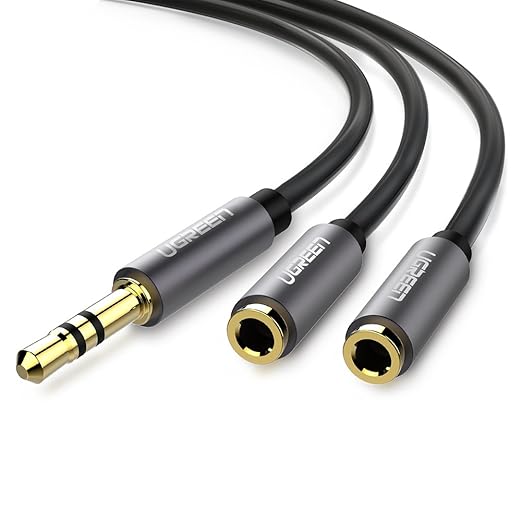
- If your connection is the same on the headset and in the computer, but the microphone still doesn’t work, you may try to convert to USB connection, use one of these converters:
- For 2 x 3.5mm jacks headsets

- For 1 x 3.5mm jack headsets
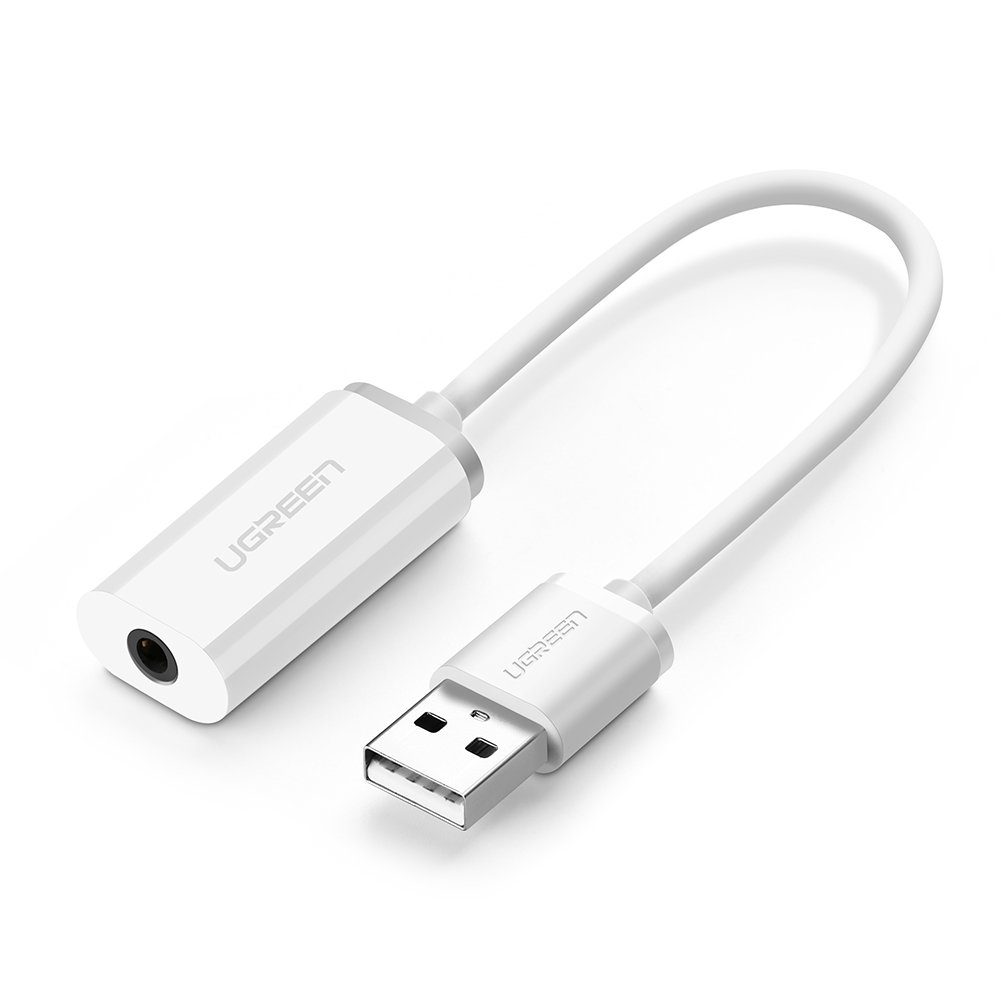
- For 2 x 3.5mm jacks headsets
- Uninstall any VoIP programs and applications, like Skype, Teamspeak or any other voice calling programs, then restart your computer and if your microphone works again now you can reinstall them.
Method VI: If you are using recording software
People who use recording software (Audio recording / screen recording) have to check that your software is up-to-date, some people reported that an old version of flashback express screen recorder was muting their microphones.
Hopefully, using these methods helped you fix the microphone settings on your Windows 10. If not, keep reading!
Please note:
If you still have problems after reading this article and going through the steps, please ask your question in our forum, where we have an expert on the subject that will try his best to help you. As we learn more information through the forum we update this article with advice that is tailored to specific devices.
Suggested Read: Best Windows Explorer Alternatives
Final Thought
Every day, we encounter different problems on our computers and other devices that require immediate response so that our work won’t be put on hold. From typical system errors and installation of various devices to simple information about technical terms, our website offers most of your computer-related questions, especially for Windows 10. Check us out now and you may find helpful tutorials. Or you may directly ask about How To Remove Your WiFi Card.
Step. ‘A list of Microphone…appears’
Only ‘Microphone array’ appears..
I installed the Via HD drivers. Now what? The microphone still doesn’t work. Thanks in advance!
Thanks to you I was able to solve the problem of my laptop mic, I got until step 9.
Best regards
IDT High Def:
After step 7, Click ‘Let me pickup a list of device drivers on my computer’, “Audio Endpoint” and “Generic software device” are my only options for driver selection. I have had to do this before to fix the problem; however, I have updated my hP ENVY dv6 since then.
Did you find a solution?
I am having the same trouble, After step 7, Click ‘Let me pickup a list of device drivers on my computer’, “Audio Endpoint” and “Generic software device” are my only options for driver selection. Pls any help. what do i do, any help please
I have philips earpods that I use to talk to friends with through the Xbox app. The problem is that I have to yell to be heard, I tried increasing the volume and frequencies but that did nothing, can anyone help?
Bro,my microphone is actived,but,when i record with OBS / Bandicam or Skype,it doesn’t work 🙁
same shit here the mic works for like 10 sec then it stops
I’ve tried attaching different headsets with microphones but none of them appear as recording devices. I have no idea what to do if I can’t even access the microphone’s settings
Me too! I can’t find anything anywhere on it.
Followed instructions and internal mic is being recognized; external mic only sometimes (messages say: ‘not plugged in’ and at the same time ‘device is working properly’).
Adjusted microphone to 100 and booster to 20 db. Both microphones (when external mic was working) very quiet, the green bars hardly move, Skype test call recording is weak, voice recognition programs don’t pick up anything.
Driver: Realtek High Definition Audio 6.0.1.7572; date: 7/29/2015; ThinkPad X1, 64 bit
Did you manage to solve it somehow? i have the same problem, and the same drivers
Im having exact same issue
Same here!!
Hey Guys, please pay a visit to our forums and explain your problem, we are helping lots of people with their problems there:
https://win10faq.com/forums/
WTF NON OF THEM WORKED
i have tried all this and nothing works…:( i have a realtek driver installed now…my sound works just fine and the headphones/mic are brand spankin new… please help!
For me it does not work. I have a SONY CSM-CS 10 microphone and it can not be detected even after above mentioned options. What can be done with it?
Great article, thank you! I’ve been havin’ a hard time figuring out how to check the settings. Now I’m able to record sounds. Thanks again. 🙂
i’m using Philips microphone and non of these are working. please help.
What article? I would appreciate reading it. I have done everything but cannot record my voice to computer. In SOUND Recording, microphone has green tick, sound bar moves (even as I type now) but when selecting voice recording, comment : You need to set up a microphone in Settings. Very frustrating.
I have the EXACT same issue. This really stinks.
Help! I was quite happy working away and windows updated itself to 10 and now my mic does not work. It is Realtek High definition audio device. tried everything in this article and nothing works! Thanks windows…
My new Dell computer came with Windows 10 and the Realtek High Definition Audio Device, which I assume is my built-in microphone, worked fine for a few months. Now? NOTHING. None of the suggestions on this help page worked, and I can’t even get Cortana to “hear” me when I click on her microphone, much less by saying “Hey Cortana” to wake her up. There seems to be quite a few people having mic problems when they have the Realtek High Definition Audio Device. Is there something special we should know about fixing it?
I’m having the same problem Trish. Was your issue ever resolved?
THANK YOU!!!!!!!!!!!!!!!!!!!!!!!!!!!!!!!!!!!!!!!!!!!!!!!!!!!!!!!!!!!!!!!!!!!!!!!!!!!!!!!!!!!!!!!!
*this*
i cant drag the slider to 100 its now stuck at 0
Nothing seems to work for me either. I have tried everything and the worst thing is that it worked perfectly when I was using Windows 8.1 but now it suddenly doesn’t. AND the best part is that I’m a heave user of Lync (Skype for Business) but now that is totally useless. Beautiful I must say Microsoft – that will boost your business in the business area (I THINK NOT).
thanks. the uninstalling thing helped me with my headphones