


If after starting up Windows 10 or 11 you encounter a window in the top right corner saying “Personalized Settings (Not Responding)” and get stuck on a black screen, following this guide will help you fix it. You end up getting stuck on this black screen because Windows Explorer doesn’t start properly and so the desktop ends uploading very slowly, or not at all. This issue most often happens due to problems with updates.
Quick Jump:
- Restarting your computer
- Restarting the Windows Explorer process
- Repairing files with SFC
- Removing registry entries
- Check Graphics Drivers
- Switch the network connection
The first thing to try is simply restarting your computer:
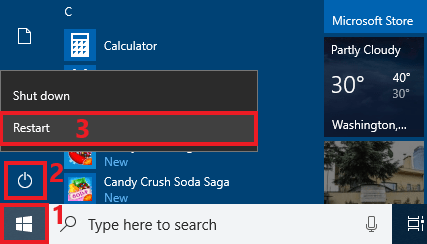
Sometimes just restarting Windows can get it to sort out whatever is wrong on its own. Here’s how to restart Windows properly while stuck on this screen:
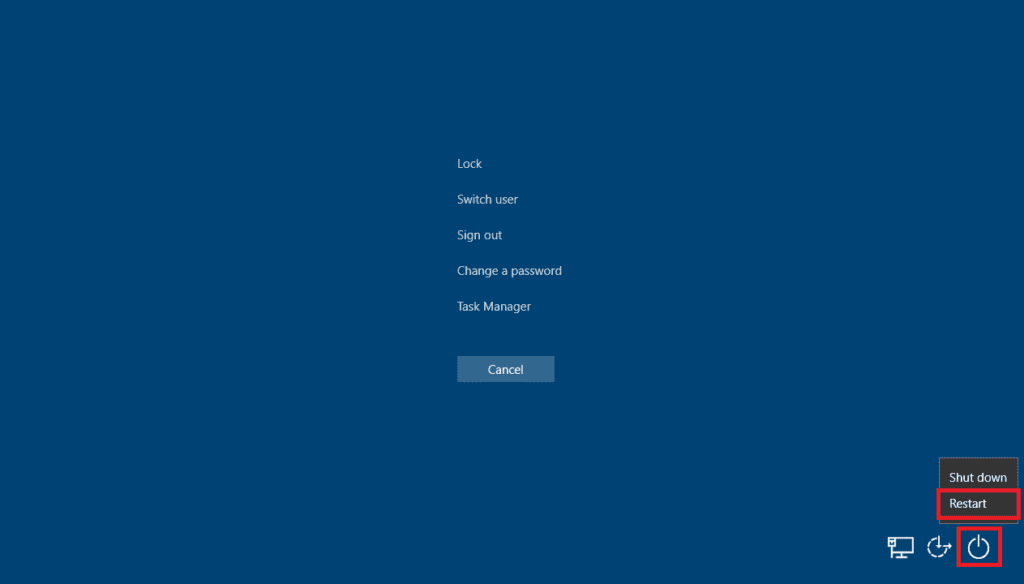
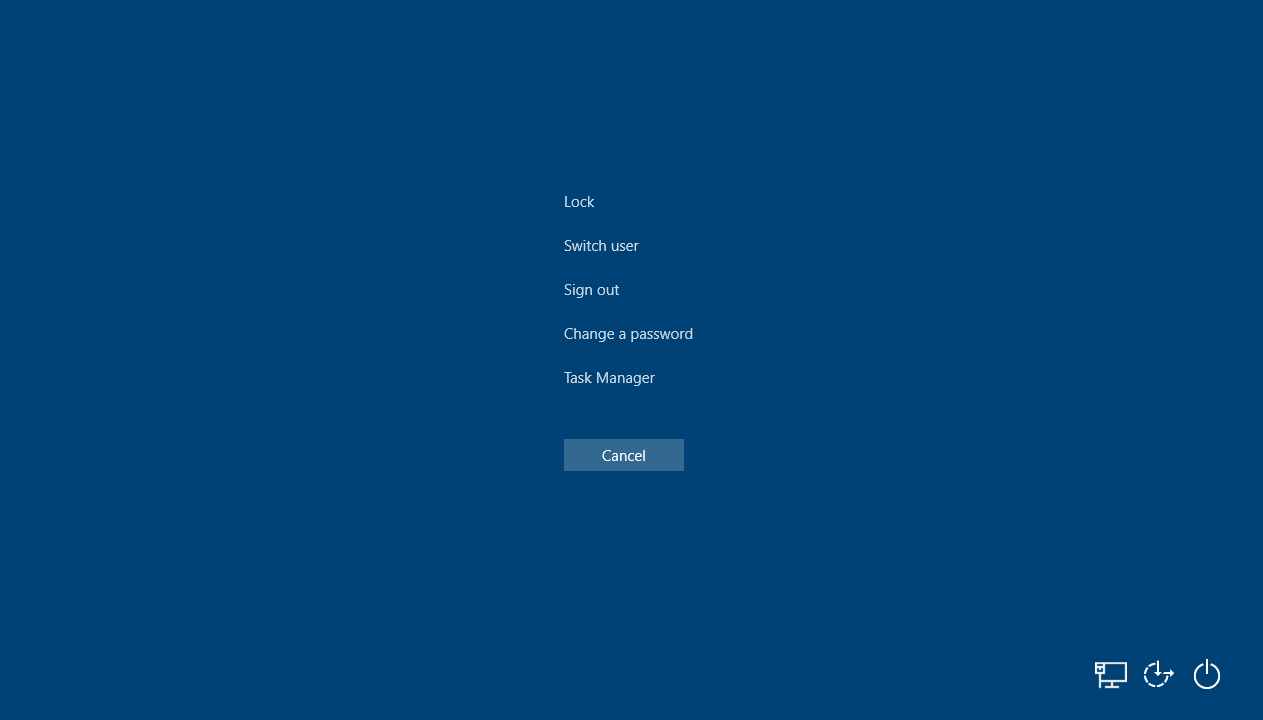
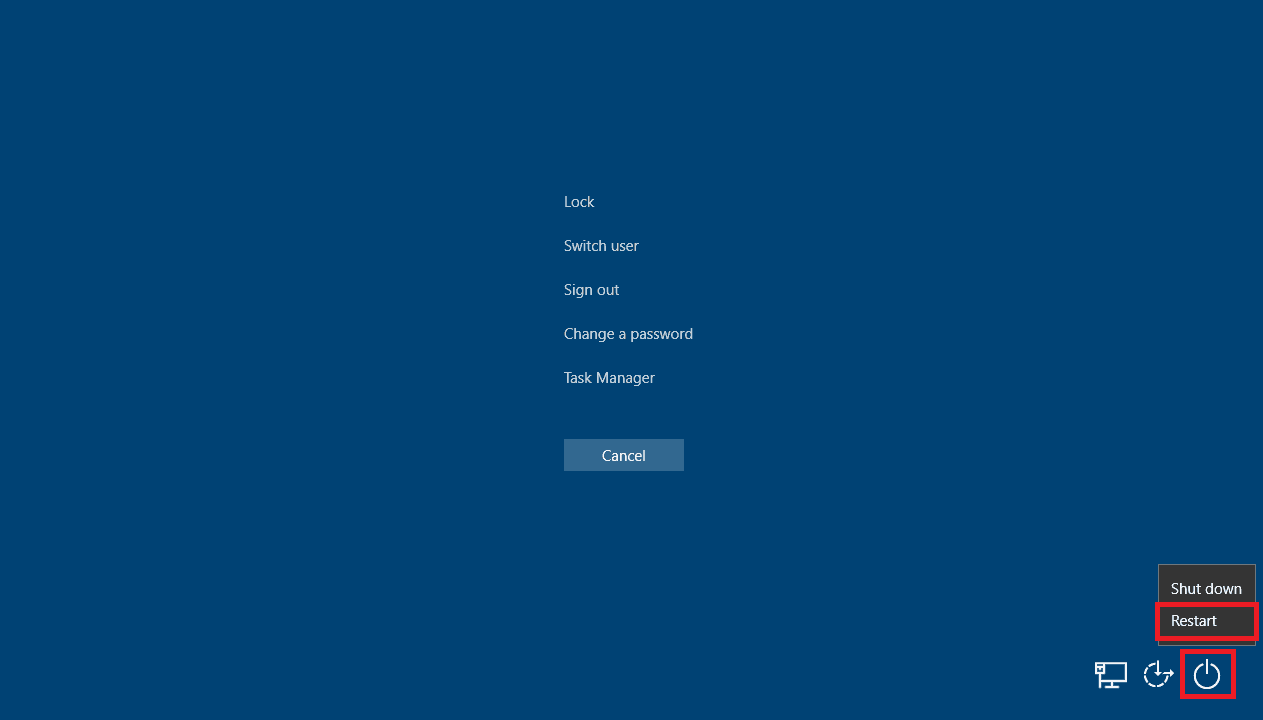
- Press Ctrl+Alt+Delete to open what’s known as the Windows Security screen.
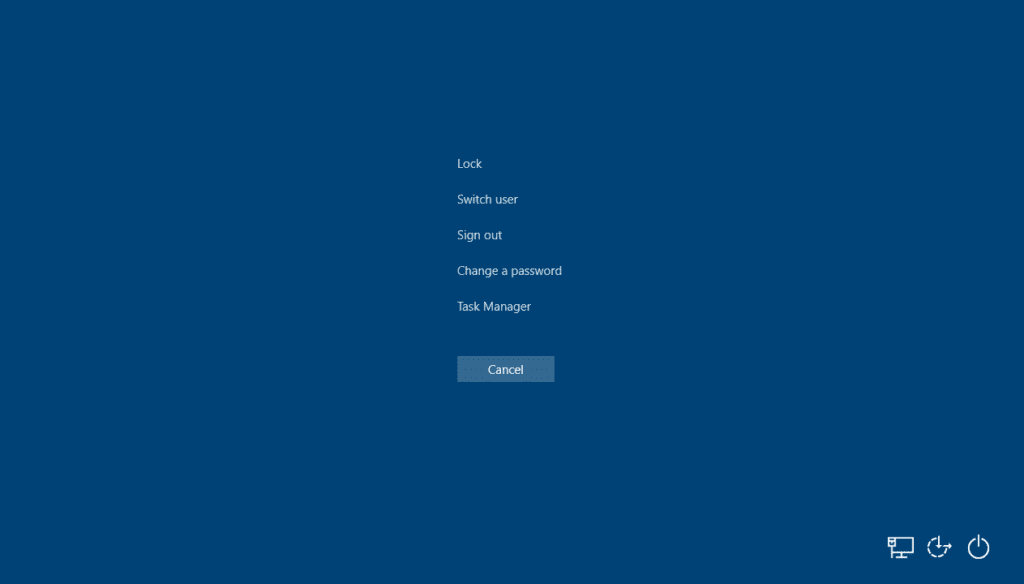
- Click on the power icon in the bottom right corner and then on Restart.
If after restarting you still encounter the “Personalized Settings (Not Responding)” error, read on for more solutions.
As this error has to do with Windows Explorer, restarting it can fix it:
In order to do this, you’ll once again need to access the Windows Security screen:
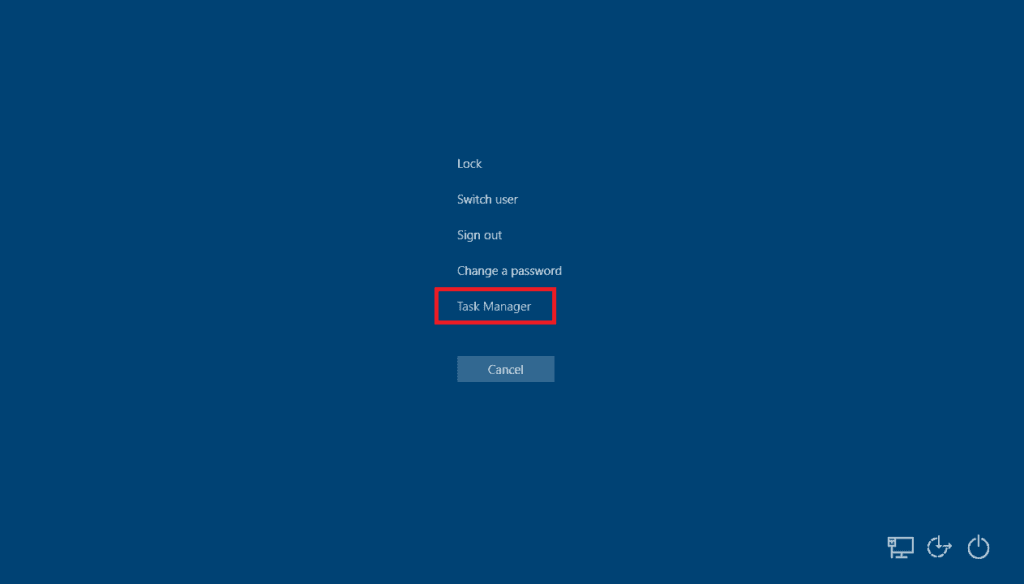
- Press Ctrl+Alt+Delete to open the Windows Security screen and then click on Task Manager.
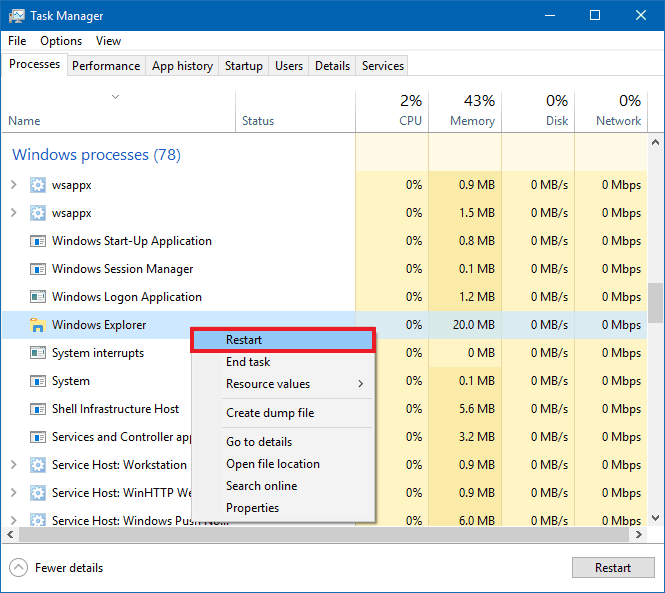
- Once Task Manager has opened, scroll down and search for Windows Explorer then right-click on it and then click on Restart. You can also click on Windows Explorer to highlight it and then click the Restart button on the bottom right.
- Click on More details in the bottom left corner to see all processes if your Task Manager does not show everything.
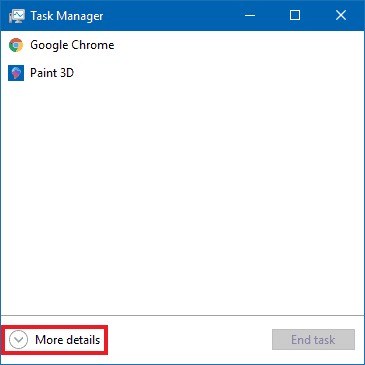
- Click on More details in the bottom left corner to see all processes if your Task Manager does not show everything.
Restarting Windows Explorer this way isn’t always enough, however. Sometimes you need to completely stop Windows Explorer and then start it again with administrator privileges. This can also be done from Task Manager:
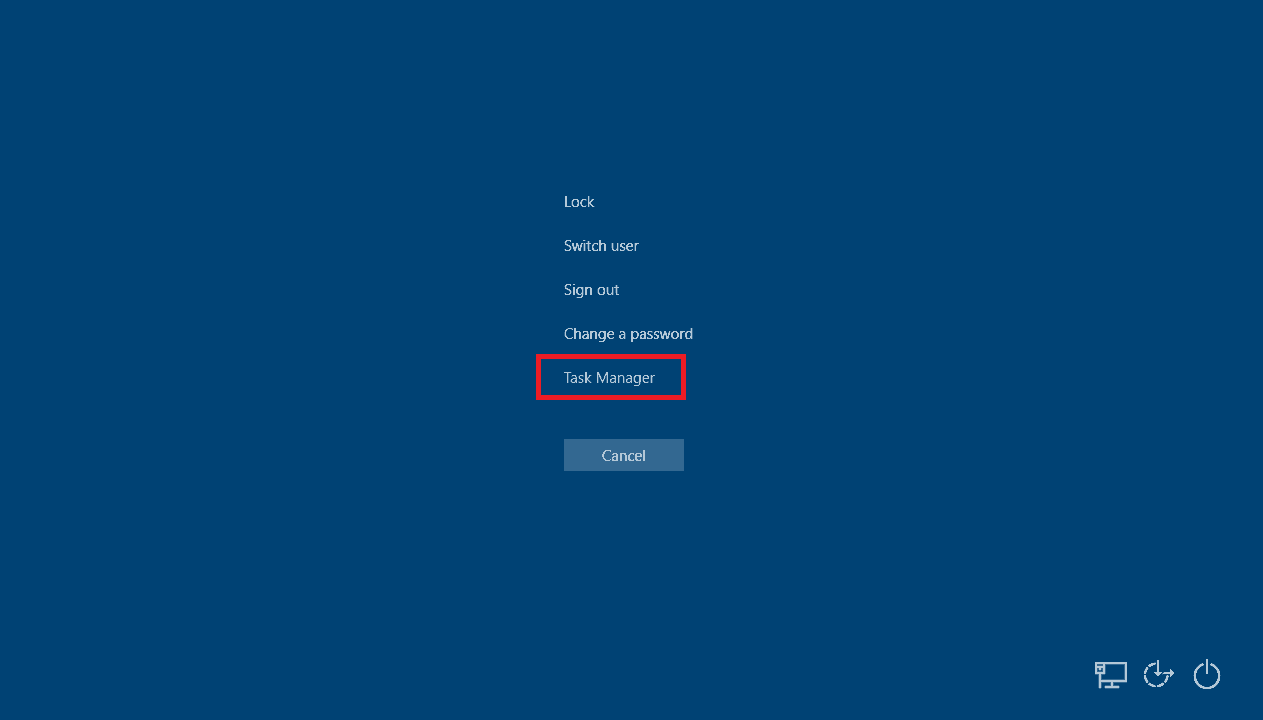
- Press Ctrl+Alt+Delete to open the Windows Security screen and then click on Task Manager.
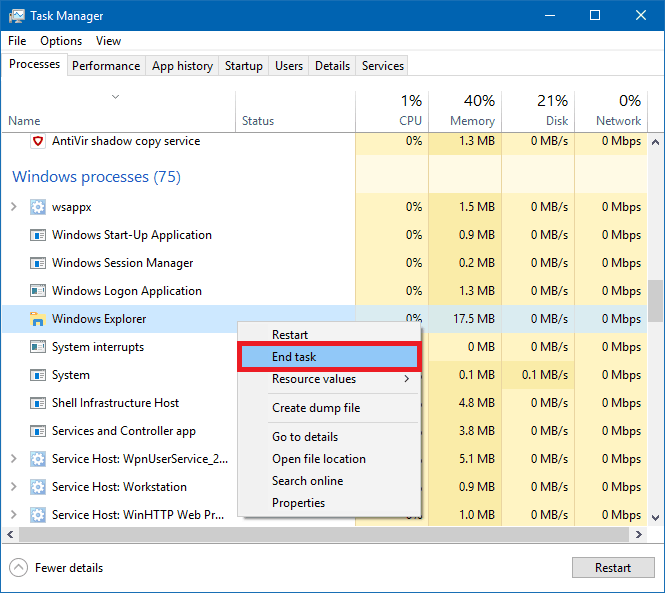
- Once Task Manager has opened, scroll down and search for Windows Explorer, right-click on it and then click on End Task.
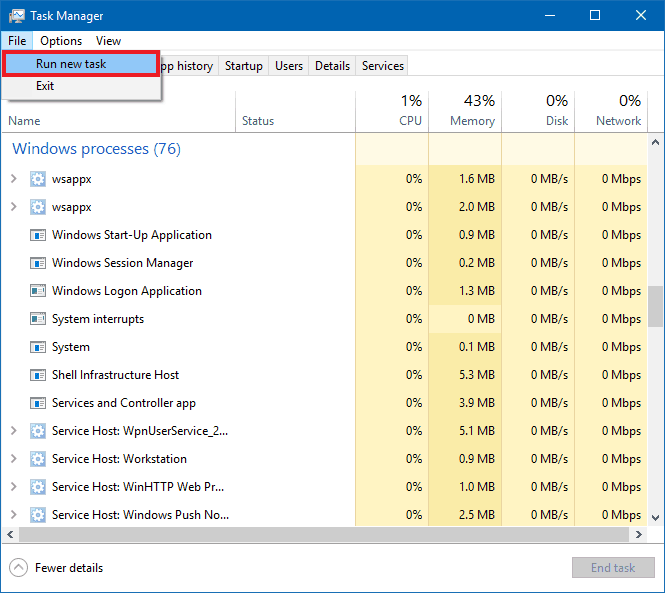
- Now click on the File menu in the top left and then on Run new task.
- In the window that comes up type in “explorer” in the Open: box, make sure to tick the Create this task with administrative privileges box and then click OK.

- If all goes well you should have your desktop back. It’s a good idea to restart your computer to see if the problem comes back.
If following these steps doesn’t work or the problem comes back after restarting, there’s still more you can try.
Corrupted system files can cause this issue and running the SFC command can repair them:
You’ll need to open Command Prompt in order to do this. Normally you’d do this through the Windows start menu or Windows search, but as they will likely not be available for you, you’ll need to open Command Prompt from Task Manager. Here’s how:
- Press Ctrl+Alt+Delete to open the Windows Security screen and then click on Task Manager.
- Now click on the File menu in the top left and then on Run new task.
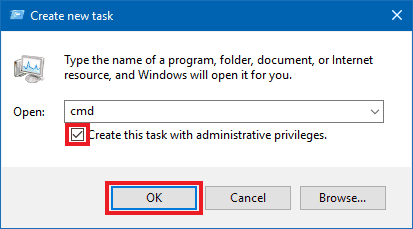
- In this new window type “cmd” into the box, tick the Create this task with administrative privileges box and then click OK.
- In the Command Prompt window, type or copy and paste the following command:
sfc /scannow
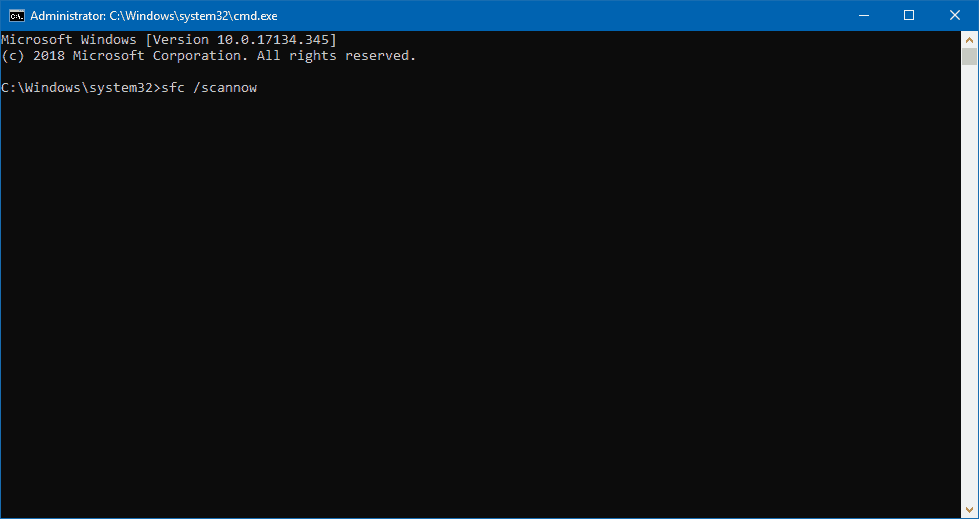
and then press Enter.
- The scan will then begin and attempt to fix any corrupted files it finds. This can take a while. Wait for it to finish.
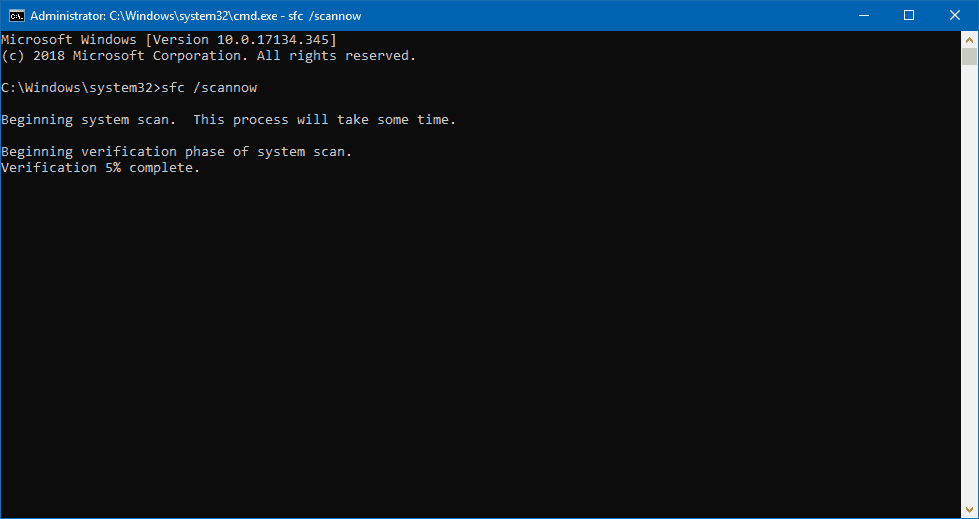
- Once the scan and repairs have completed, restart your computer to see if the problem still occurs. Use the Ctrl+Alt+Delete shortcut to reach the Windows Security screen again in order to do so.
Still no luck? There’s one more solution to try.
This issue can also be resolved by removing certain registry entries:
Sometimes registry entries can become corrupted after an update and deleting them allows Windows to regenerate properly working ones. As editing the registry can be risky, it’s recommended to back up the registry before making any changes.
The first entry involves updates to Windows Explorer and is usually the one that ends up causing the “Personalized Settings (Not Responding)” issue.
Here’s how to access and delete it:
- Press Ctrl+Alt+Delete to open the Windows Security screen and then click on Task Manager.
- Click on the File menu in the top left and then on Run new task.
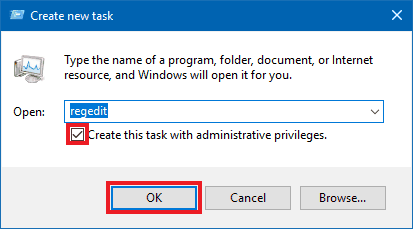
- Now type “regedit” in the box of the window that comes up, then tick the Create this task with administrative privileges box and click OK.
- Once Registry Editor is up, you’ll use the arrows next to the folders on the left to expand them and navigate. Click on the arrow next to HKEY_LOCAL_MACHINE then the one next to SOFTWARE, then Microsoft, then Active Setup and finally on Installed Components.
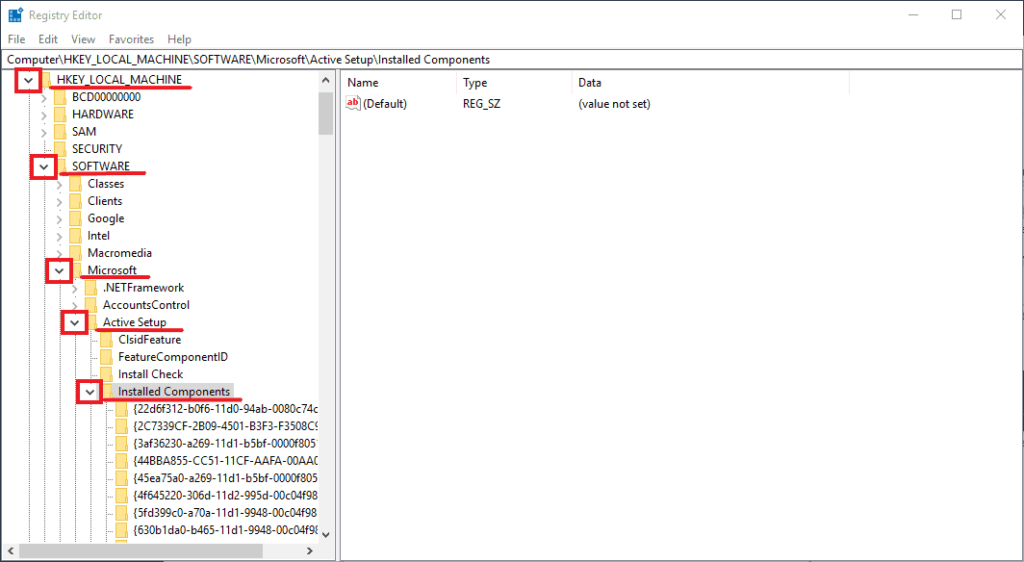
- Below Installed Components there will be a number of folders with strings of numbers and letters. Look for and click on the one named {89820200-ECBD-11cf-8B85-00AA005B4340}. When you do, an entry named (Default) with the value of Windows Desktop Update should be the first one on the right. Your folder should have the same name, but if not look at all of them until you find one with the (Default) : Windows Desktop Update entry.
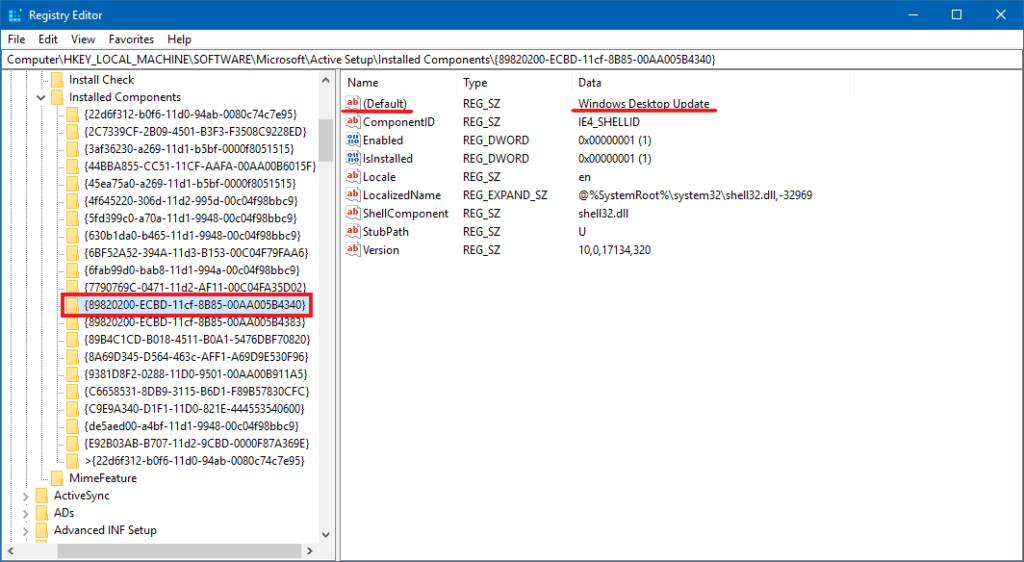
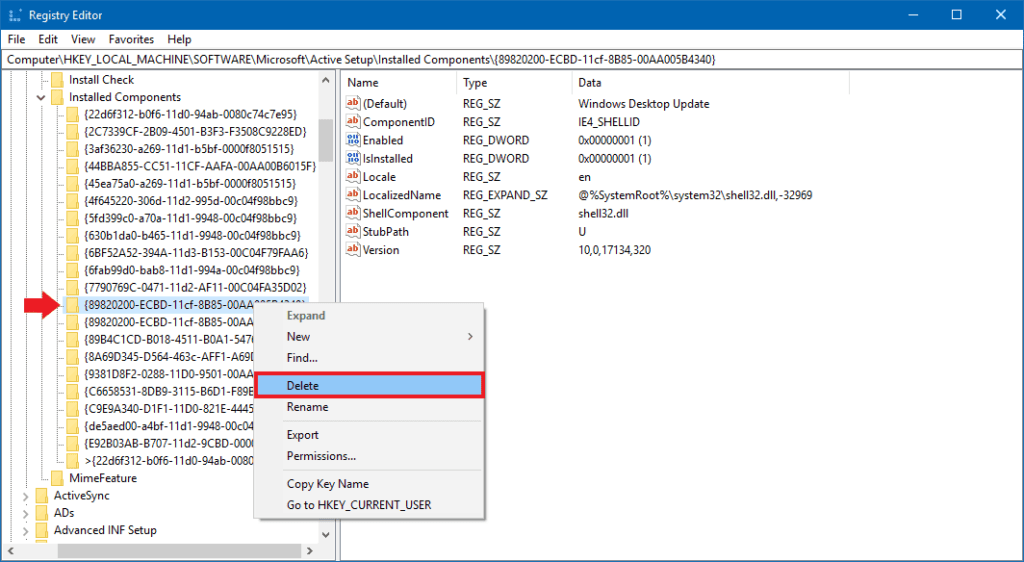
- Once located and selected, right-click on the folder and then click Delete.
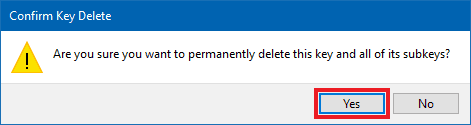
- On the confirmation window click Yes.
- Once done, restart your computer from the Windows Security screen which can be accessed with the Ctrl+Alt+Delete shortcut.
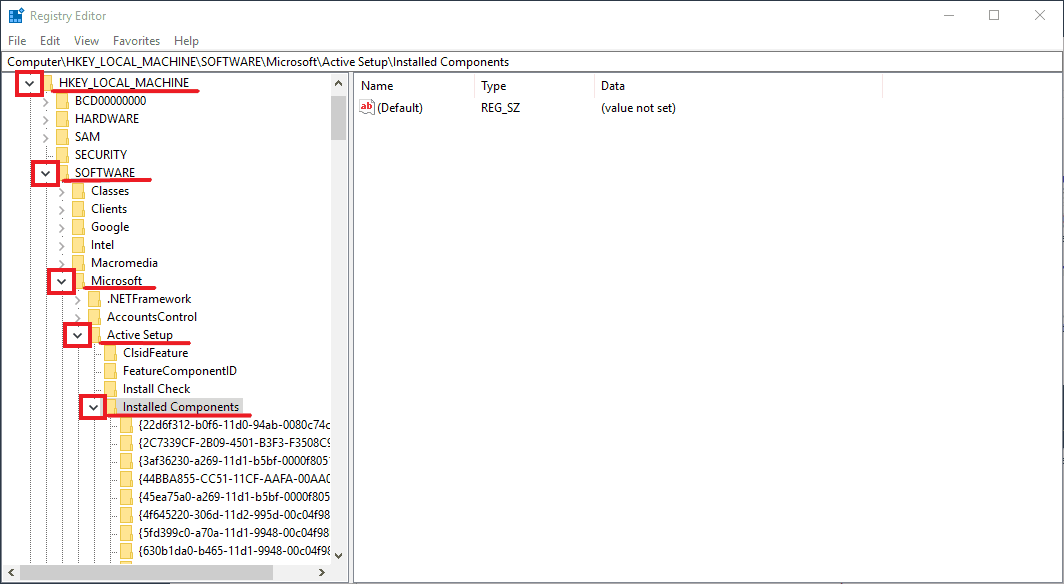
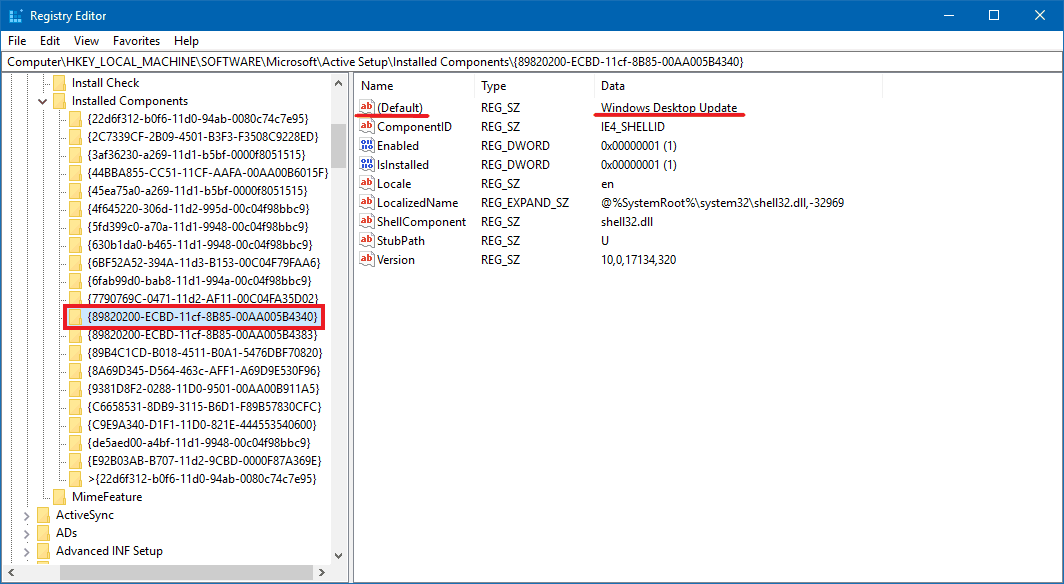
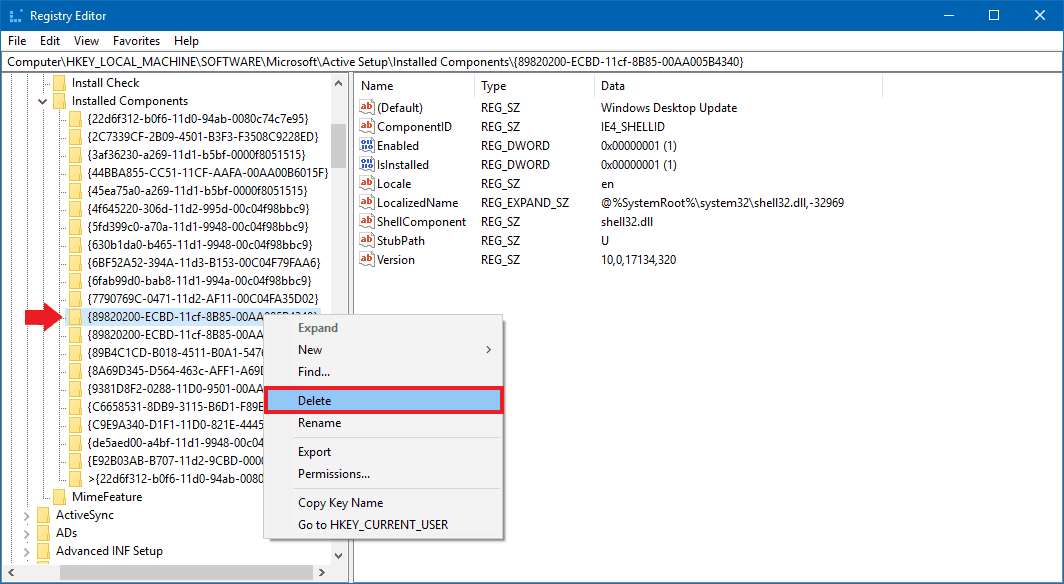
You should now be able to access your desktop normally without an error message or black screen.
If deleting the first entry doesn’t work, there’s another you can try deleting:
This entry is under the same Installed Components folder. Here’s how to access it from the beginning:
- Press Ctrl+Alt+Delete to open the Windows Security screen and then click on Task Manager.
- Click on the File menu in the top left and then on Run new task.
- Now type “regedit” in the box of the window that comes up, then tick the Create this task with administrative privileges box and click OK.
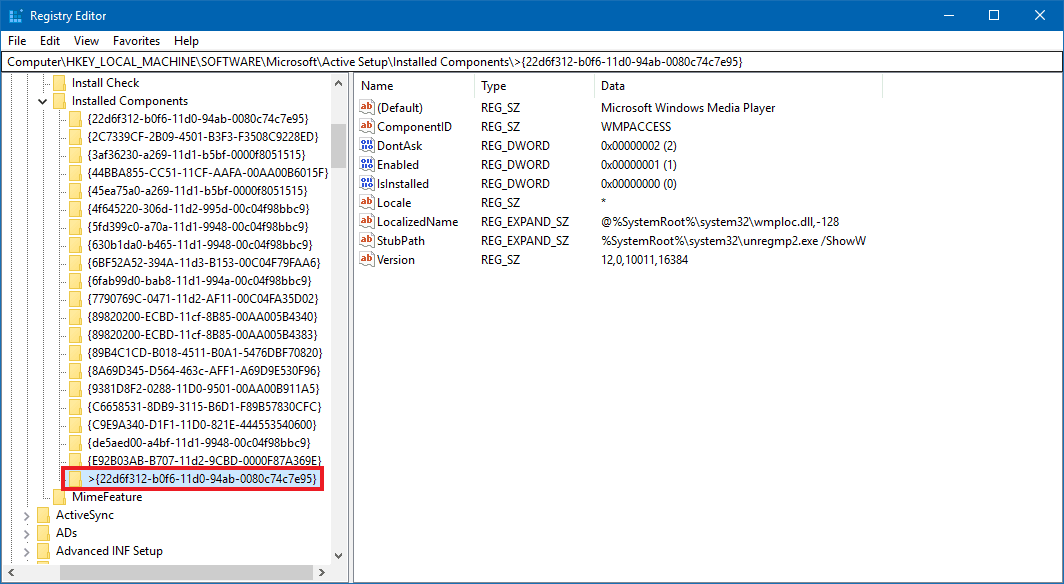
- Once Registry Editor is up, you’ll use the folders on the left to navigate. Click on HKEY_LOCAL_MACHINE then find and click on SOFTWARE, then Microsoft, then Active Setup and finally on Installed Components.
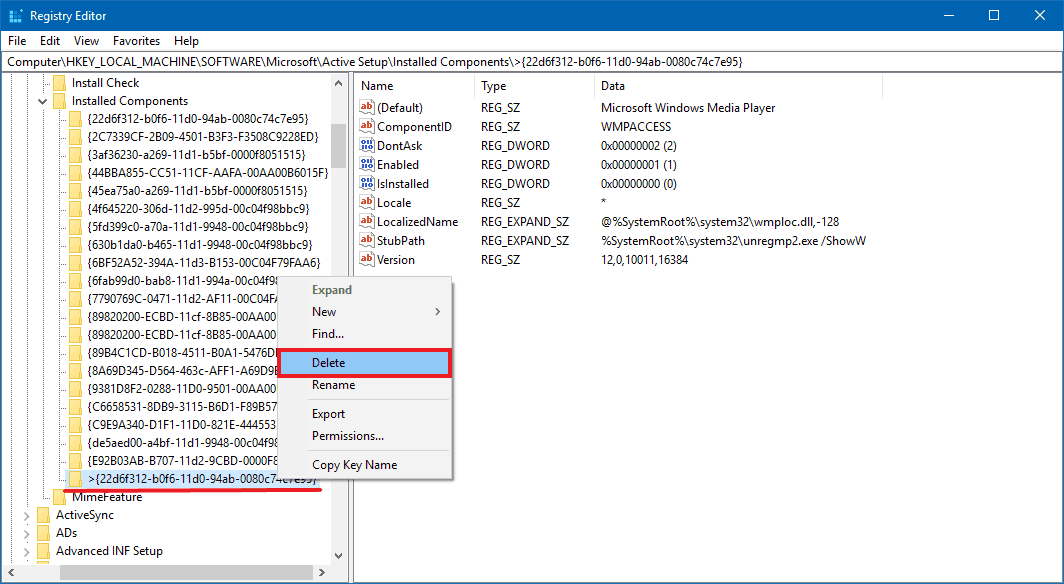
- Below Installed Components click on the very last folder. It should be named >{22d6f312-b0f6-11d0-94ab-0080c74c7e95}, but it’s possible yours could be different.
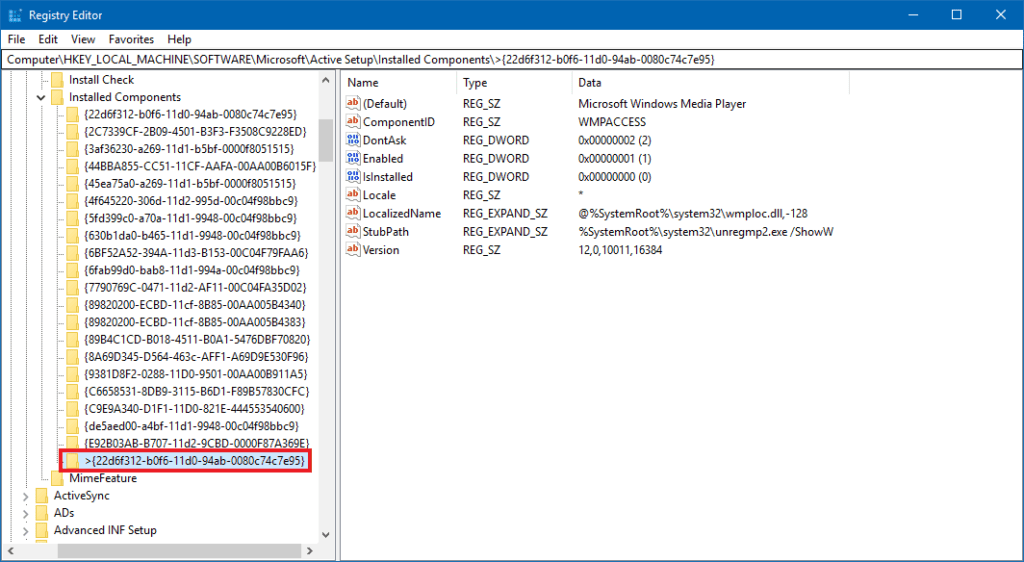
- Now Right-click on this folder and then click Delete.
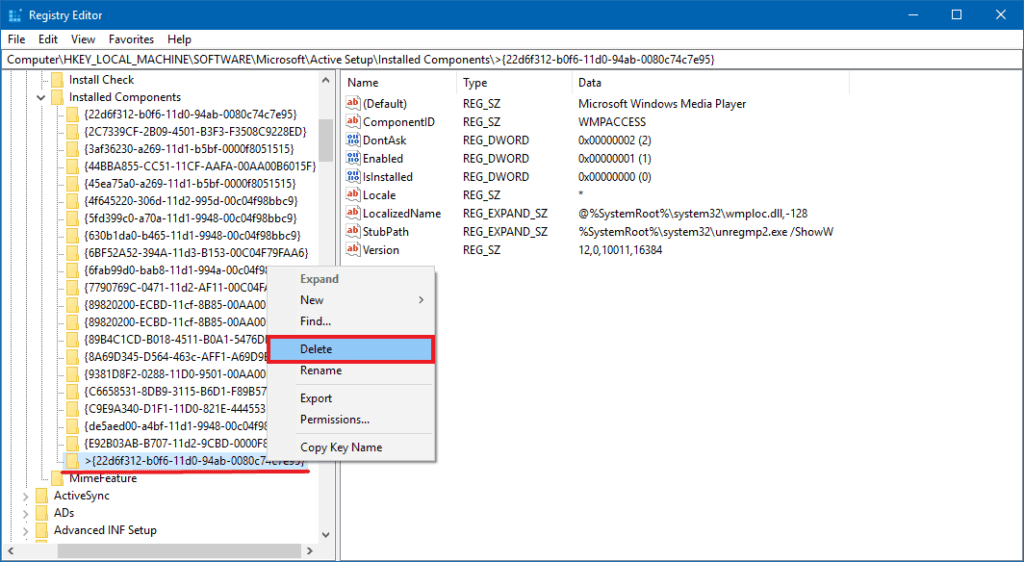
- Click on Yes when the confirmation window comes up.
- Now use the Ctrl+Alt+Delete shortcut to reach the Windows Security screen again and restart your computer.
Update Your Graphics Driver.
At times, an outdated graphics driver might be causing all the fuss. To make sure you’ve got all of the latest drivers and updates, be sure to visit the “drivers” or “updates” sections of the manufacturers’ websites.
Otherwise, a third-party application can easily solve this problem for you in the background, so you can forget all about it and still have all of the latest tweaks and benefits. One of our users’ favorite pieces of software that can achieve such a thing is Driver Booster. We highly recommend you download it and configure it properly, especially if you’re a beginner computer user.
Another program that can do this is DriverPack. It’s easy to use, makes installs and commits command files automatically so you don’t have to move a finger if a new driver update is available for download and installation. Furthermore, you don’t need to install DriverPack per se, as it’s a portable application – meaning that you can just run it on the go without any installs, much like a typical Linux Distro but in a small application formfactor. Wicked, right?
Finally, some networking could do the trick.
If all else fails, then this last-resort trick should finally lay the problem to rest.
- Press Ctrl+Alt+Delete to open the Windows Security screen and then click the airplane mode icon (or the computer network icon).
- Then click Airplane mode whether it’s On or Off to switch the network connection.
- Now click Sign Out in the power off section of the Security Screen.
- Finally, log back in to your user and your computer should now be working as intended.
Final Thoughts
Hopefully, you should now be able to log in to Windows with a working desktop. If you have any questions or comments, feel free to leave them below. We’re always eager to reading what our community thinks regarding these fixes and if they also have tricks of their own.
The system I have task Manager will not open up. I get a spinning mouse icon and then nothing
So If I cannot open task manager I cannot edit the registry
Hey Lloyd, sorry to hear that. In this case you’ll likely need to use startup repair or similar recovery options. While for a different issue, following the steps in this article should help: https://win10faq.com/windows-10-stuck-on-welcome-screen/
How do I use the startup repair?
Thank you my man. This has happened to me twice and I have used this article both times. Different solution each time as well. I appreciate it!
Thanks Ryder I was able to get in after an hour thanks to your article.
Deleting the registry entry worked for me.
Thank you!
Nothing changed 🙁 . The problem is still as it was .
Hey Lloyd!
Did you get this figured out?
I was able to get to the command prompt and still delete those registry things, but those didn’t work. I still cannot access the task manager at all.
Deleting the first registry key got me back into the desktop. However something is not right apps are not responding even Task manager is not working. This is damn annoying just yesterday everything was working I had recently updated to 1803 and windows update said I was up to date and ready to update to 1903. But this morning some newer 1803 updates sneaked onto my system. I left them to fully install restarted and then got this “Personalized”screen popping up. I see that registry key that I deleted doesn’t appear anymore. I thought Windows would create another key. Can you please elaborate?
this Rhyder guy is dumb dumb when it comes to windows ui. Press Windows key + R to open the run dialog, you can open the registry editor this way, you can even search for regedit.
Ran across your article when I had this problem after a Windows update. Restarting Windows Explorer was exactly what I needed. Thanks!
You’re welcome! Glad you got it working again.
Thanks man .it is really work for personalized setting with windows update . Is that a problem if delete the register dekstop update ?
followed the same ..it worked thanks heaps.
Fantastic …. the one using registers edit help me with my problem … a massive thanks 😉
You are very welcome! Glad I was able to help.
Thank you so much for the help my problem is fixed now.
You are very welcome. Glad my guide could help you fix it.
I faced same issue today and deleting the registry entry resolved my issue. Thank you Ryder for sharing this wonderful blog?
thank you so much. The registry editor one fixed it for me.
I really do appreciate the various fixes you have provided here (in my case, I just let it spin anywhere from 30 seconds to a few minutes) but, have you been able to confirm the actual root cause of this problem? I manage 100+ PCs in the office (Win 10) and this happens several times per year after updates.
It’s never the same person’s PC and I can’t reproduce it once it happens so I don’t know how to go about creating an environment that will avoid the issue in the first place. Can this really be attributed to corrupted system files?
I’m afraid I’m not sure of the exact cause or files involved myself. Even those who work at Microsoft never seem to be quite sure of what causes these problems. Haha.
But if I had to give an educated guess, it would be that some of the Windows update files get corrupted or otherwise unable to be read/written properly, which slows down or prevents Windows from fully starting up. There seems to always be a chance of files getting corrupted during an update, so I imagine the more computers you’re managing the more often you’ll encounter this problem.
Hope I was able to help a bit.
Hi, thank you very much this is so helpful. I have same problem. But may i ask i tried using the alt+ctrl+del and then click the task manager but it doesn’t work. Task Manager wont open. Thanks, hope you can help me
Hello my personalized setting not responding error
Well Ryder,
Task Manager No Go. Windows key no response. SFC / scannow command from the C: prompt via Advanced Options in the repair software won’t effect any repairs.
Safe mode: Application Not Responding. Startup Repair: back to square 1.
I appreciate your efforts but is there any other option than a complete reinstall?
Hey Chris,
Sorry you haven’t been able to fix this problem yet. There are still a few things you can try before completely reinstalling Windows. If you haven’t already, I’d recommended trying the registry editing fixes in the guide if you’re able to.
If those don’t work, then using System Restore is likely your best bet. You can check this guide for info on how to do system restore from in Windows, or this one for doing it from Windows recovery.
I just get a black screen nothing happens
Had a powr outage today and when o turned my pc back on was getting this issue. After some digging and fixs found this one and realized it might be a mix of power outage abd then installing updates when i turned it back on. So after try the first regedit fix all was well. Thanks fo this fix c:
You’re welcome! Glad my guide could help.
Encountered this issue after installing the latest 1903 update.
Works after deleting the first registry that you mentioned thanks alot!!!
What does the two deleted registy do?
I was prompted to download a Windows feature update (1909). On reboot I had the same issue reported above, only the windows personalization dialog appeared after the 4th or 5th reboot. Instead, I just saw an empty screen after logging in. I followed the instructions step-by-step, and the first regedit step seems to have done the trick. Thanks, Ryder – you are a life saver!
Mostly this happened after update. Still working on it, restarting and end task the explorer does not work on my windows. now tryin with the CMD one. Thanks for the guide Ryder.
You’re welcome. Hope you’re able to get it to get it working again.
Thank you very much for this helpful guide. I was afraid that I wouldn’t fix the issue. It took me all the way to the last option to finally see my desktop again. Thanks a lot
Good man. Step with Windows Desktop Update regedit sorted me.
Good to hear. Glad my guide helped you solve it.
Hi…thanks fro regedit, it fixed my post update issue!
Thanks, the registry delete worked!
I fixed it by removing the last windows update via the diagnostics option.
Glad you were able to solve it. I might have to look in to that and add it to the guide.
I was also about to get my desktop back by uninstalling the latest feature update.
Ive experienced this once before and it sorted itself out. It bums me out because I have school work and such I am trying to get done after work!! Hopefully it stops happening and sorts itself out soon- Ive tried all but the last method and its not fixed itself….
Just got that error today. I just entered Taskmanager and over run task started the explorer.exe again. It took a bit but after a while the explorer started normally. I then just did a reboot and had no issues again.
Thank you so much for the help my problem is fixed now.
I would like to thank you for making these easy step to make my computer work again. The main problem here is the Regedit has not worked on my computer. It act’s like is working and then it starts saying working on updates and give’s me the same problem. I have deleted both as you have put down, HKEYS and the computer reinstalled the Hkeys. So I went back and looked thru some of the other files and seen the same HKEY is in Computer\HKEY_Current_user\software\microsoft\activesetup\installed components\{89820200-ECBD-11cf-8B85-00AA005B4340}. So i try to change the numbers and i well what
Well, I changed the Hkey deleted the Hkey. They just come back every time. This time I have seen that I had a Dell update run at the same time. So I’m at a bit of a lost and this has been a year now that I have done everything. It will not refresh back to windows 8 all the drivers for windows 10 are there so.
yep, thank you dave youre the good man. this is the only option to solve this issue. go to diagnostic and remove last feature update. wait for a while and here we are
Thanks man, i solved problem with registry.
You are the greatest . Thank you
Thank you sooooo much!!! I was just about ready to ditch my pc and buy a Mac, but I was able to fix this by following your instructions. I had to use all of your suggestions, but in the end, it worked. So glad I found your website!
I often have the problem you described after W10 updates, restart computer. Before I was aware of your suggestions, not knowing what else to do, I shut down and restarted my pc, sometimes I had to do this a couple of times and eventually normal service was restored.
Following your suggestions I have found the two registry keys you mentioned {89820200-ECBD-11cf-8B85-00AA005B4340} and {22d6f312-b0f6-11d0-94ab-0080c74c7e95} but have not deleted them as my pc is now working fine.
What do these reg keys do and is there a risk in deleting them now? Should I wait until the next update to delete them, if restarting my pc as you explained does not correct the problem?
Thank-you Ryder! The “Run new task” step got me back up and running.
In the last few years I’ve come to dread Windows 10 Update notifications on my desktop – they can be frustrating experiences that cause so many issues (in that same period not one issue with my MacBook & updates…so far), but now have your site bookmarked!